






Dashboard
Your Admin Dashboard is your hub for keeping your finger on the pulse of your business. Take a look

 October 01, 2024
There are several reports in the Bottle POS Admin that can give you data for multiple stores at once. Take a look at how easy it is to do!
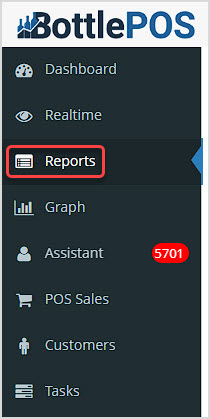
To get to this part of the system, sign in to your Admin. Click Reports in the upper left to view the reports detailed below.
See how to show data for all of your stores in the Summary Report in this short video.
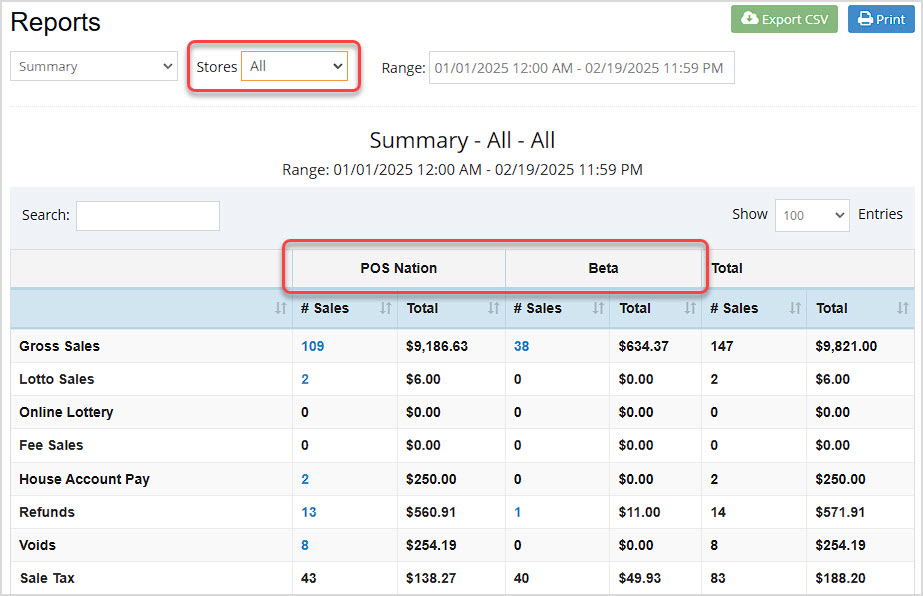
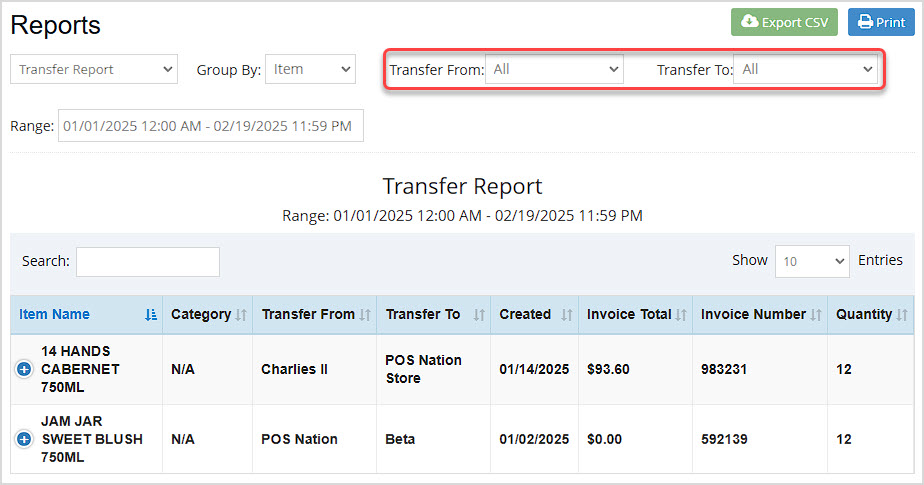
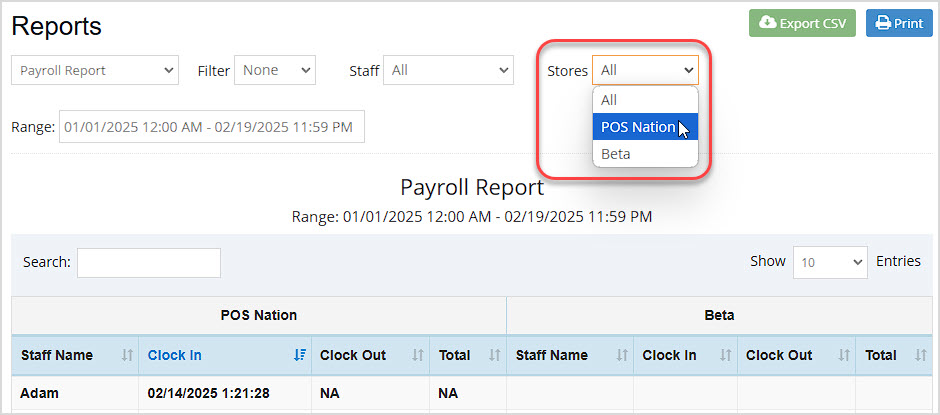
There are three reports in the Admin Reports area that offer data on multiple stores. These reports will show data for all stores you have linked in the Settings > Stores area. Here are the reports:
How to Transfer Items Between Your Stores
Q: I don't see a way to switch stores in the Sales Report, how do I see data for my other stores?
A: While some of the reports have a filter for Store, most will show you data for the store your User account is currently logged into. You can click the Logout button in the upper right and then log in again to choose a different store.
Q: I have a question, but I can't find my answer here, how do I get more assistance?
A: You can ask any question at the number below. Contact our 24/7 support team at: (877) 381-4087
Is this page helpful?
×Help us improve our articles