






Dashboard
Your Admin Dashboard is your hub for keeping your finger on the pulse of your business. Take a look

 April 16, 2026
The Tips Report shows tip amounts received by date and sales clerk and can be filtered by Staff and Date Range.
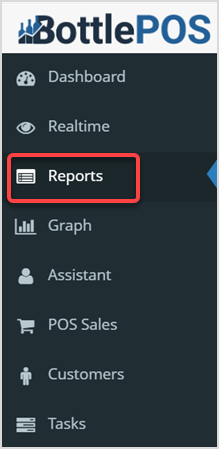
The Tips Report a snapshot of the tips received by your employees. Log into the Admin app and click on Reports. Click the Reports drop-list and scroll down to Tips and click on it in the list to open the Tips Report.
If needed, in the upper right you can click the Export CSV button to export the data in the report. You can also click the Print button to either print the report to a connected printer or download the report as a PDF file. In the data table, you can click on the column headers to sort the report alphanumerically or click again to reverse the sort.
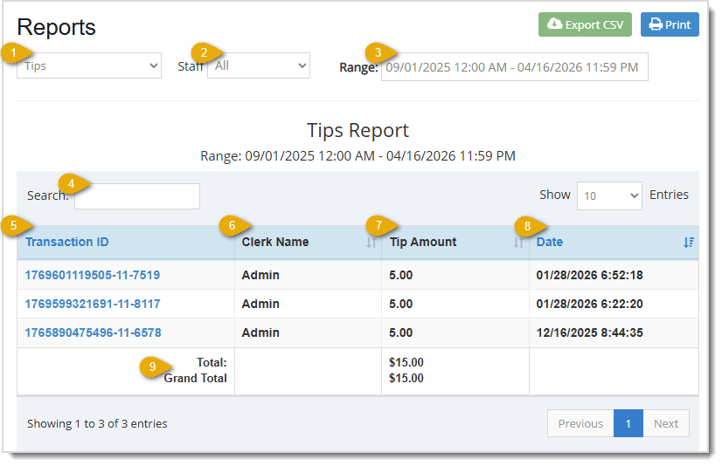
Here are the features of the Tips Report:
Working With Transaction Details in the Admin
How to Add Employees - Staff & Admins Settings
Q: Can I print my reports from the Admin?
A: Yes. If you have a printer connected to your device, you can click the print button in the upper right of the report page to print the report you are viewing.
Q: I have a question, but I can't find my answer here, how do I get more assistance?
A: You can ask any question at the number below. Contact our 24/7 support team at: (877) 381-4087
Is this page helpful?
×Help us improve our articles