Variance Report

April 16, 2026
The Variance report is part of the Inventory Counting functionality. It shows you which items need to be reordered in your current inventory. Take a look!
The Variance Report
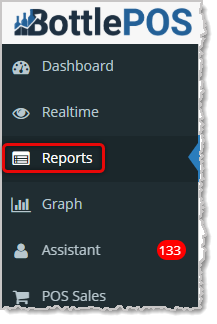
To get to this report, log in to your Admin app and go to Reports. In the Reports list, scroll down to Variance Report and click to open it. The report will show you quantities and amounts that had adjustments after an Inventory Count. For example, if an item had a quantity of 86 before the count, but was actually sold out, after the count, the Variance Quantity would be -86, as pictured below for #16. For quantities or dollar values that increased, those values display in green, and negative values display in red.
If needed, in the upper right you can click the Export CSV button to export the data in the report. You can also click the Print button to either print the report to a connected printer or download the report as a PDF file. In the data table, you can click on the column headers to sort the report alphanumerically or click again to reverse the sort.
After a count is completed, the full Variance Report is available at Admin > Reports > Report > Variance Report.
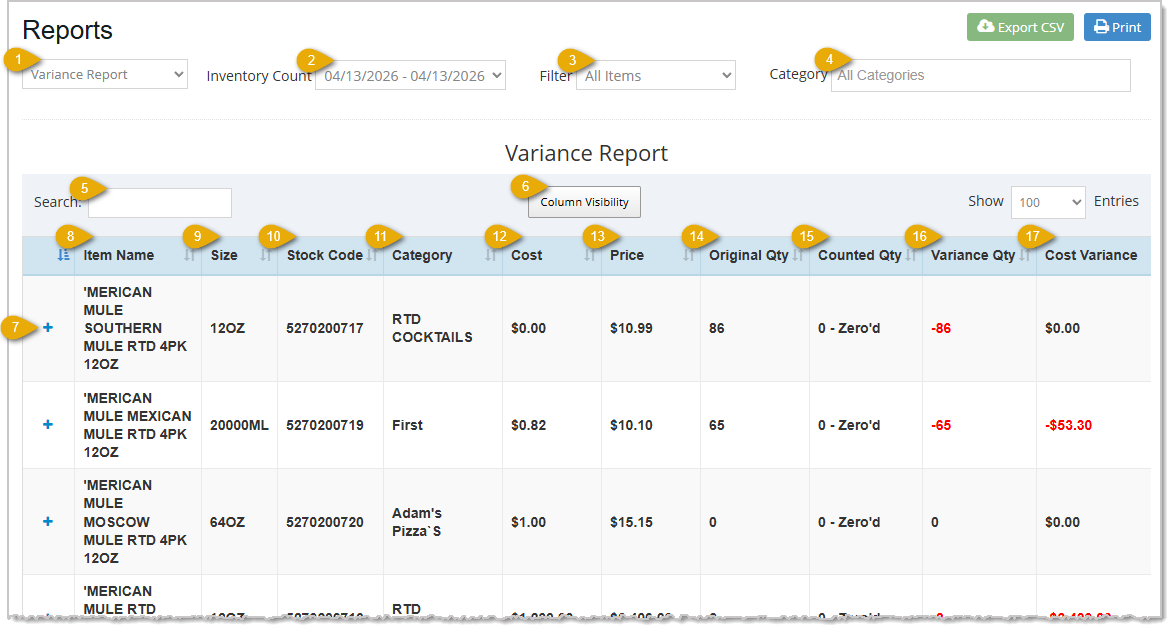
- Reports Drop-List - Click and select Variance Report near the bottom of the list to view details of the inventory in an Inventory Count.
- Inventory Count - Use the Inventory Count drop-list to select which completed count to view.
- Item Filter - Filter by All Items or With Variance Only to focus on discrepancies. You can also filter Items by Counted Items or Zeroed Items, if needed.
- Category - Click this drop-list filter to view data for only a specific Category. By default, All categories that have products in the Inventory Count will display.
- Search - Enter any text here to Search for a specific row in the data table. You can search by keyword or numeric values. For example, you might start typing “Jack” to filter the search results to only Jack Daniels inventory. The system will start searching for matches as soon as you start typing.
- Column Visibility - You can click the Column Visibility button to set which columns display and which don't. By default, all display except for Supplier.
- Plus Icon - Click the + expand icon on any row to see a per-list breakdown of where and how the item was counted.
- Item Name - This column displays the Name of each inventory item in the Inventory Count.
- Size - This columns will display the item's Size, if any. For example, 20oz or 500ml.
- Stockcode - This column lists the Stockcode(s) of each item in the Inventory Count.
- Category - This column shows the Category for each item in the Inventory Count.
- Cost - This column shows the Cost you paid for each item in the Inventory Count.
- Price - This column displays the selling Price of each item in the Inventory Count.
- Original Qty - This column lists the count the system had for the item's Quantity at the time the Inventory Count was run.
- Counted Qty - Your item counts for each item in the report will display in this column. Items that were zeroed display as 0 - Zeroed.
- Variance Qty - This column displays the the difference between the Original Quantity and the Counted Quantity, if any.
- Cost Variance - This column shows the difference between the Cost Value of the inventory before the count and after the count for each item.

- Column Totals - This row shows column totals for dollar amounts and quantity counts for the Cost, Price, Original Quantity, Counted Quantity, Variance Quantity, and Cost Variance Columns. The Total for each is for the current page of the report, and the Grand Total is for all pages in the report.
Related Topics
Guide to the Admin Reports
How to Manage Categories
How to Manage Suppliers
How to Add an Inventory Item
Frequently Asked Questions
Q: I have a question, but I can't find my answer here, how do I get more assistance?
A: You can ask any question at the number below. Contact our 24/7 support team at: (877) 381-4087
Your Admin Dashboard is your hub for keeping your finger on the pulse of your business. Take a look
Your Admin Realtime page gives you a live view of your sales as they come in and has some useful uti
The Reports in the Bottle POS Admin can show you details about all of your data, however you need to









Is this page helpful?
×Help us improve our articles