Day Report (POS)

October 01, 2024
This report shows sales information for all registers in the store and you can adjust the date/time range. To see similar information for a single register, use the Register Report.
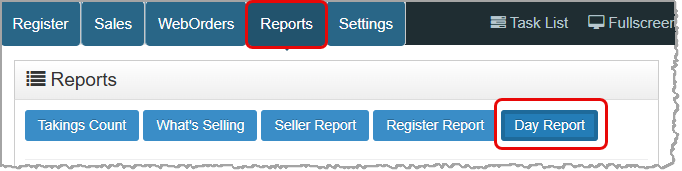
To get to this report, log into your Point of Sale app and go to Reports > Day Report.
Working With the Day Report
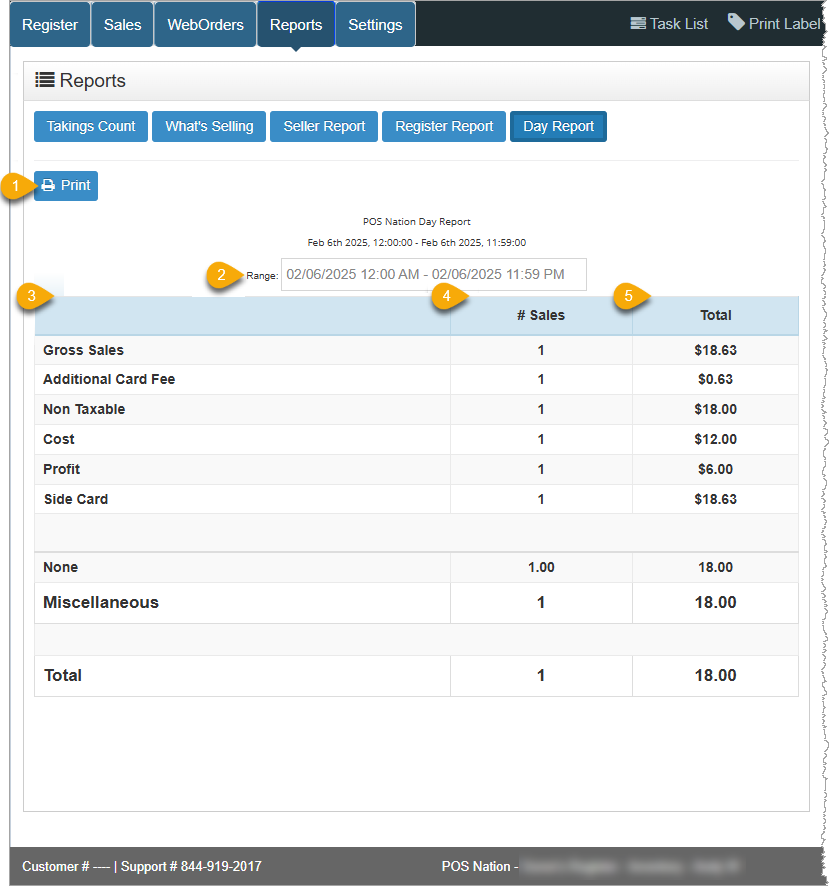
- Print - Click to print the current page of this report to PDF or a printer connected to your computer.
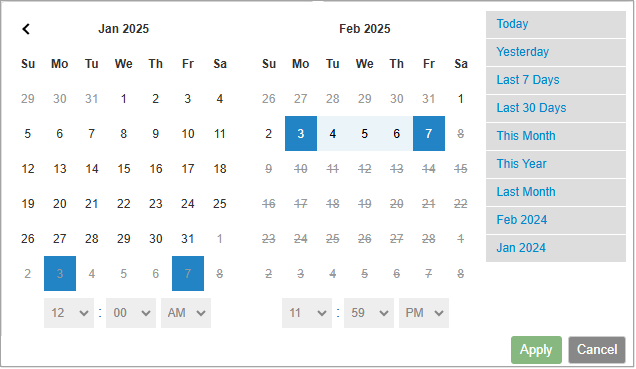
- Range - This is the Date Range used in the report calculations in the table below. Click in this box to select another date or dates from a pop-up window as shown here:
- Revenue Details - This area is customizable using the Day Report Category Format field in Admin > Settings > POS Settings and the Hide Zero Amount From Summary Report option in Admin > General Settings. In the image shown above, the Day Report Category Format field was set to Category Group and the Hide Zero Amount From Summary Report option was selected.
- Gross Sales - This is the total dollar amount of sales, before reductions, from all registers during the selected date range.
- Lotto Sales - This is the total dollar amount of in-store lottery ticket sales from all registers during the selected date range.
- Online Lottery - This is the total dollar amount of online lottery ticket sales during the selected date range.
- Fee Sales - This is the total dollar amount of funds collected in fees for all registers for the selected date range.
- House Account Pay - This is the total dollar amount paid toward house account balances for all registers during the selected date range.
- Refunds - This is the total dollar amount of refunds paid out from all registers during the selected date range.
- Voids - This is the total dollar amount of all transactions that were voided for all registers during the selected date range.
- Sales Tax - This is the total dollar amount of all sales tax collected for all registers for the selected date range.
- Bottle Deposit - This is the total dollar amount of all bottle deposits collected for all registers for the selected date range.
- Additional Card Fee - You will see this item if you have Dual Pricing enabled in your POS. This is the total dollar amount of fees charged for processing cards from all registers during the selected date range.
- Tips Amount - This is the total dollar amount of all tips collected for all registers for the selected date range.
- Non Taxable - This is the total dollar amount of sales of non-taxable items sold from all registers during the selected date range.
- Return/Exchange - This is the total dollar amount of all returns and exchanges for all registers for the selected date range.
- Sale Rounding - This is the total dollar amount of all sale rounding collected for all registers for the selected date range.
- Net Sales - This is the total dollar amount of all sales collected after all deductions have been removed for all registers for the selected date range.
- Lotto Payout - This is the total dollar amount paid out for Lotto for all registers for the selected date range.
- Online Payout - This is the total dollar amount paid out for online lottery for the selected date range.
- Coupon Sale ($) - This is the total dollar amount of all sale amounts from coupons offering dollar-off amounts collected for all registers for the selected date range.
- Coupon Sale (%) - This is the total dollar amount of all sale amounts from coupons offering percentage-off amounts collected for all registers for the selected date range.
- Promo Coupons - This is the total dollar amount of all promo coupon QR code sales collected for all registers for the selected date range.
- Canceled Sale - This is the total dollar amount of all canceled transactions for all registers for the selected date range.
- No Sale - This is the total number of times No Sale was used to open the cash drawer and the total dollar amount canceled by that action for all registers for the selected date range.
- Manual Price Change - This is the total dollar amount of all items sold with manual price changes for all registers for the selected date range.
- Cost - This is the total cost to you of the items sold from all registers during the selected date range.
- Profit - This is the total profit you earned across all transactions from all registers in the selected date range.
- Tender Types - Each tender type that had sales during the selected date range will have the total dollar amount collected across all registers listed here.
- Side Card - You’ll see this item if the Side Card tender type is active in your system, and this item tracks all sale amounts using that tender type in your system registers. This is the total dollar amount of payments made using card readers not integrated with the Bottle POS across all registers during the selected date range.
- Category - Each Category that had sales will be listed with the total dollar amount across all registers for the selected date range.
- None - This is the total dollar amount collected from the sale of items that are not in a Category across all registers in the selected date range.
- Category Group - Each Category group that had sales will be listed with the total dollar amount across all registers for the selected date range.
- Miscellaneous - This is the total dollar amount collected from the sale of items that are in the Miscellaneous Category Group across all registers in the selected date range.
- Total - This is the total dollar amount collected from all Category sales across all registers for the selected date range.
- Customer Ratings - If you have customer ratings active on your Customer Screen, you’ll see totals of all the different rating values across all registers for the selected date range.
- # Sales - This column displays the number of sales made across all registers for the date range that relate to the line item in the left column.
- Total - This column displays the total dollar amount of each report line item all registers for the chosen date range.
Related Topics
Guide to the POS Reports
Takings Count Report
What’s Selling Report
Seller Report
Register Report
Frequently Asked Questions
Q: Why is my register report showing a higher number of sales than my day report for today?
A: Every report on the Bottle POS except for the day report continues to count sales until the register is closed. If you don't close the register after every shift, the report will not reset and will contain sales from multiple shifts instead.
Q: I have a question, but I can't find my answer here, how do I get more assistance?
A: You can ask any question at the number below. Contact our 24/7 support team at: (877) 381-4087
The Reports in the Bottle POS Register App can show you details about current sales such as totals a
This article will cover how you can find transactions, something you'll likely need to do from time
The Bottle POS offers a variety of ways you can work with the details of your completed transaction.








Is this page helpful?
×Help us improve our articles