






Guide to the POS Reports
The Reports in the Bottle POS Register App can show you details about current sales such as totals a

 October 01, 2024
The Bottle POS Register has a Takings Count report built-in that can show you what you’ve collected so far for the day. Take a look at what you can do with it!
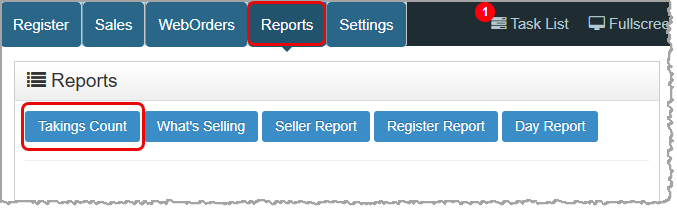
To get to this report, log into your Register App and go to Reports > Takings Count.
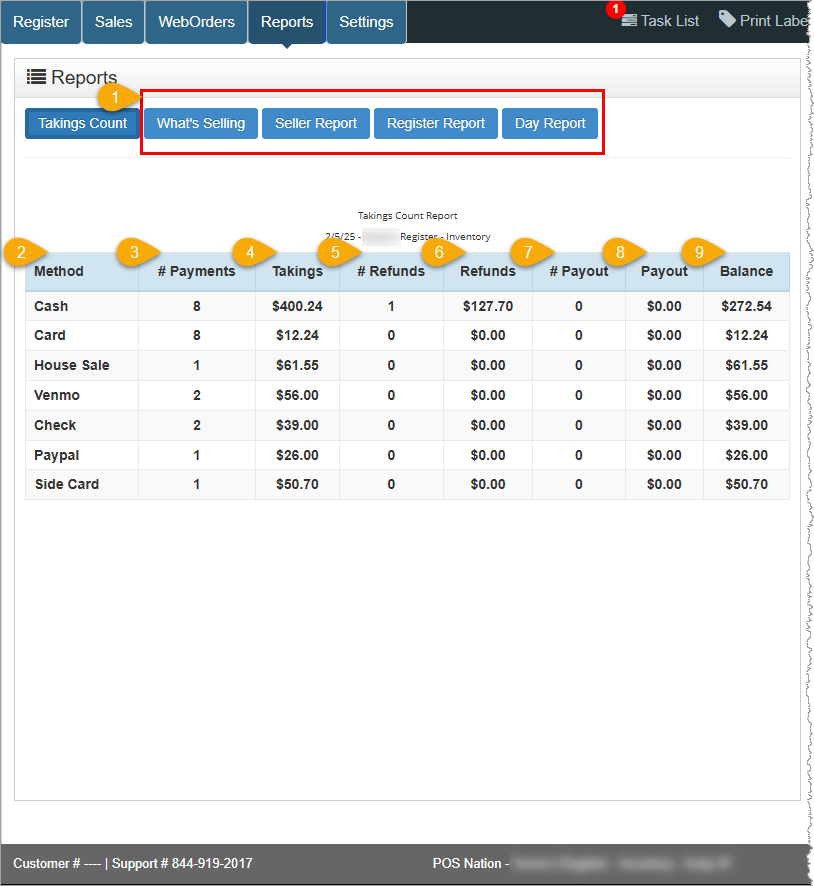
This report shows your Number of Payments, Takings, Number of Refunds, the dollar amount total of your Refunds, Number of Payouts, the total dollar amount of your Payouts, and the remaining Balance for each payment Method for the Device and Inventory Location you’ve used during the current shift. The Takings is the total amount of each tender you have taken in, whereas the Balance is the amount you have gained after payouts and refunds. They are similar to Gross and Net, respectively.
Q: Why is my Register Report showing a higher number of sales than my Day Report for today?
A: Every report in the Bottle POS except for the Day Report continues to count sales until the Register is closed. If you don't close the Register after every shift, the report will not reset and will contain sales from multiple shifts instead.
Q: Can I reprint my Shift Report for a previous shift?
A: No, you can only print the Shift Report for the current shift. However, you can use the Day Report to print a sales report for a previous date or time.
Q: What constitutes a shift?
A: A shift is the space of time between when a register Device is opened and closed. Typically, this would be the start and end of a single business day, or for multiple shifts within the same day for bigger stores. However, if you do not close out your register at the end of a day, the shift will continue into following days until you close out the register using the Closing Drawer Count feature. For more information, review the article linked above about Closing Drawer Count.
Q: I have a question, but I can't find my answer here, how do I get more assistance?
A: You can ask any question at the number below. Contact our 24/7 support team at: (877) 381-4087
Is this page helpful?
×Help us improve our articles