






Reprinting Transaction Receipts
Reprinting a Transaction Receipt You can reprint transaction receipts from the Bottle POS and Admin.

 October 01, 2024
If you're running a sale event and need to discount eligible items in the Register this article will show you how easy it can be!
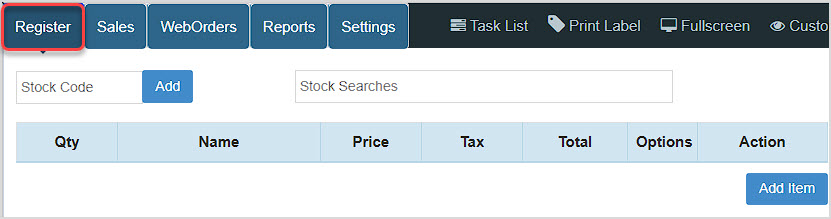
You can get to this part of the system by logging into your Register App. The Register will automatically load for you.
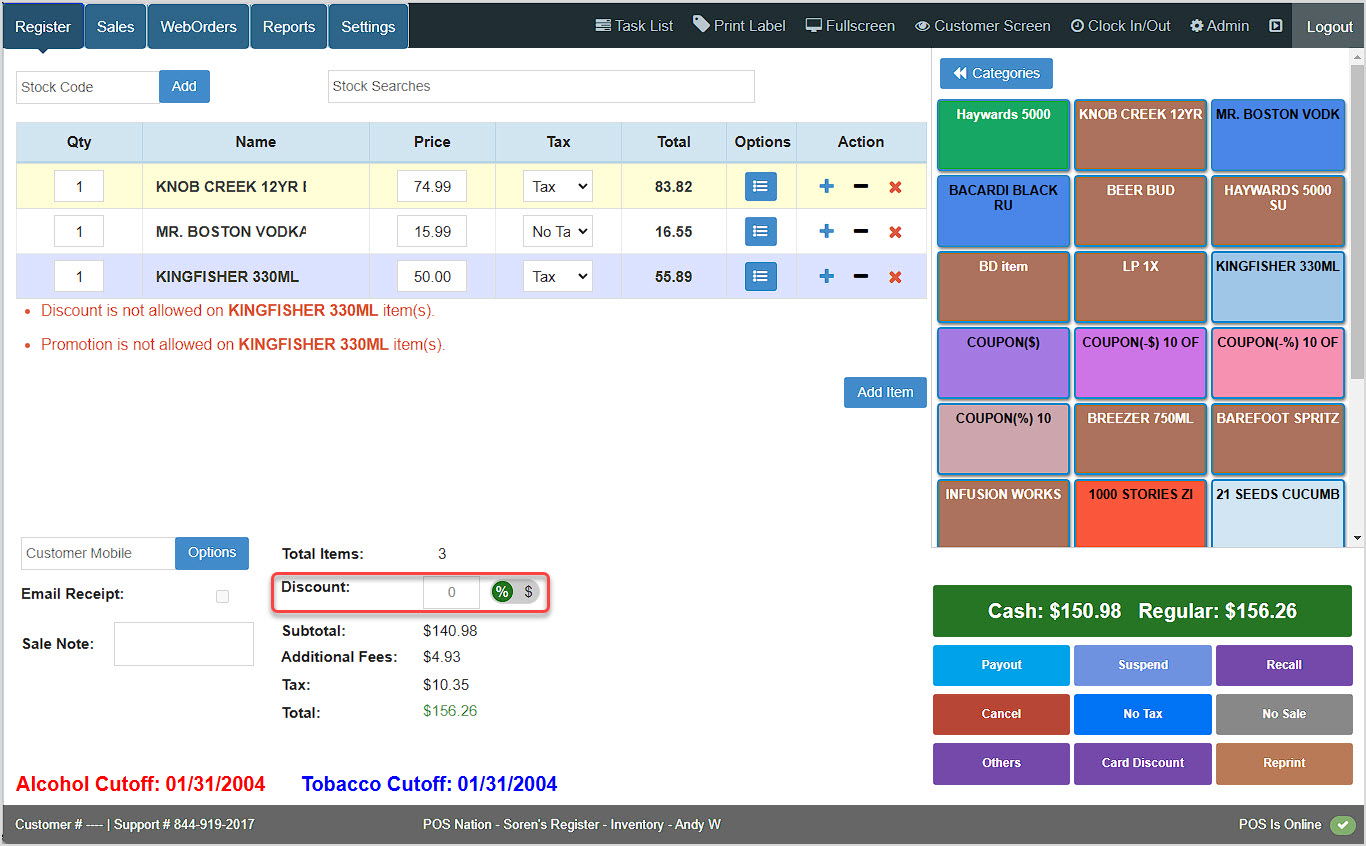
You can use the Discount area in the lower left to add either a Percentage Discount or a Dollar-Amount Discount to the transaction.
Please note that some items may be set to be ineligible for discounts, as pictured above. In such cases, when using a Percentage Discount, the total resulting amount of the discount will only be calculated for eligible items.
In the case of a Dollar-Amount Discount, if the dollar amount exceeds the total discountable amount for eligible items, the full desired discount will not be applied.
For example, in the transaction below, the top two items are eligible for discounts. A $100.00 dollar-amount discount was entered, but because of a setting for Max Discount on a Sale (see below), the discount that was actually applied was only $21.84, and was a 24% discount from the eligible subtotal.
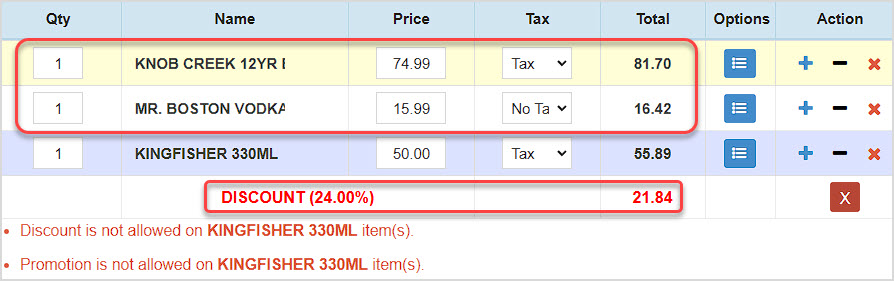
When you apply a discount, it will display in a line item with the percentage and amount, and you can remove it if needed. The discount will also print on the receipt.
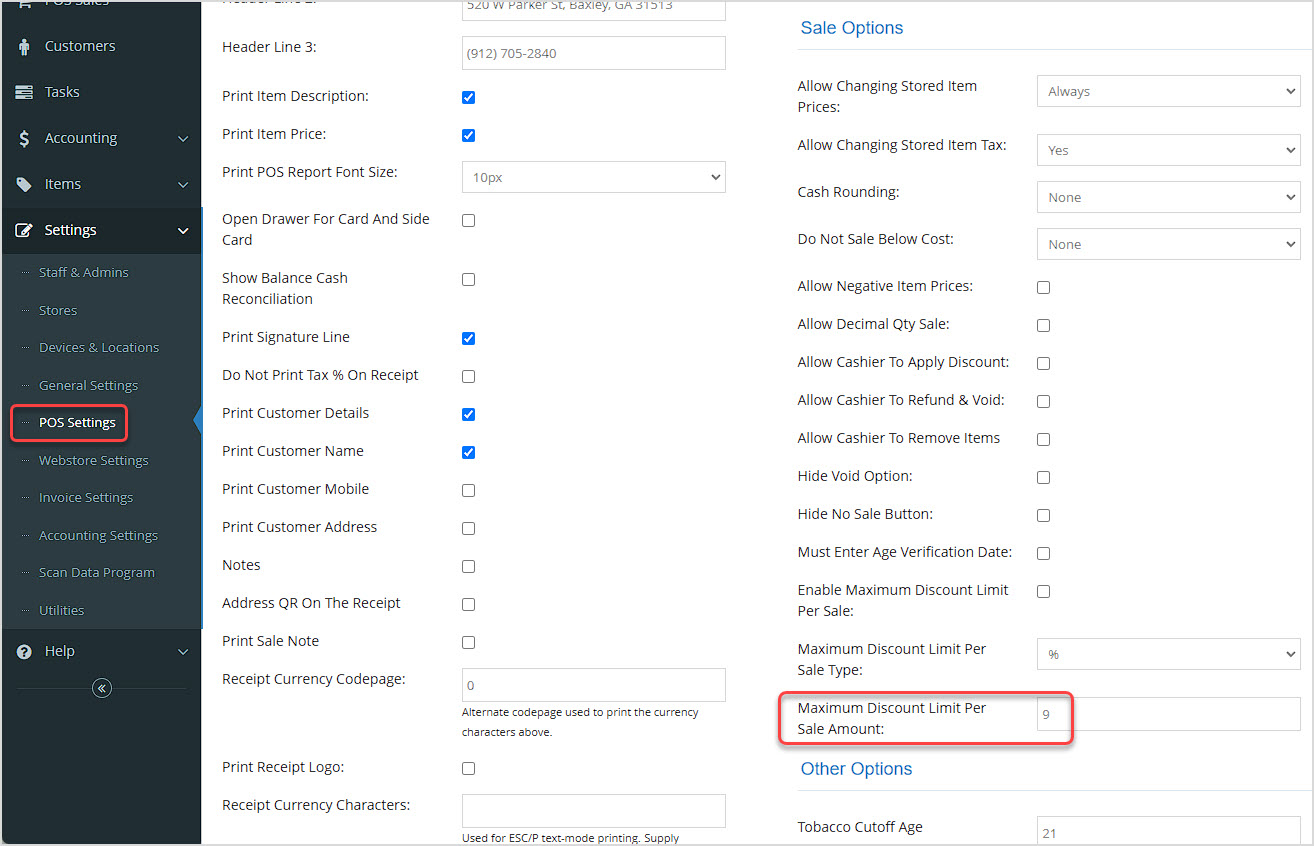
In the Admin under Settings > POS Settings, in the Sale Options area on the right, you can set a Manual Discount Limit Per Sale Amount that will ensure your sale events don't jeopardize your bottom line.
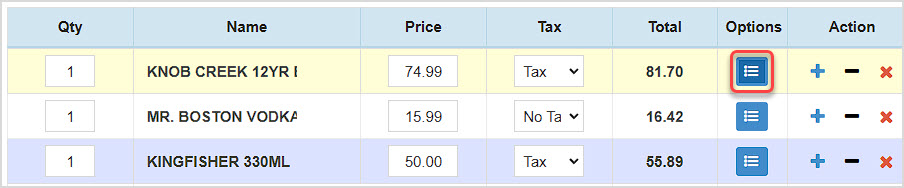
By default all Items in your system will be eligible for discounts like the ones above. To set an item to no longer be eligible, click on its Options button, as pictured below.
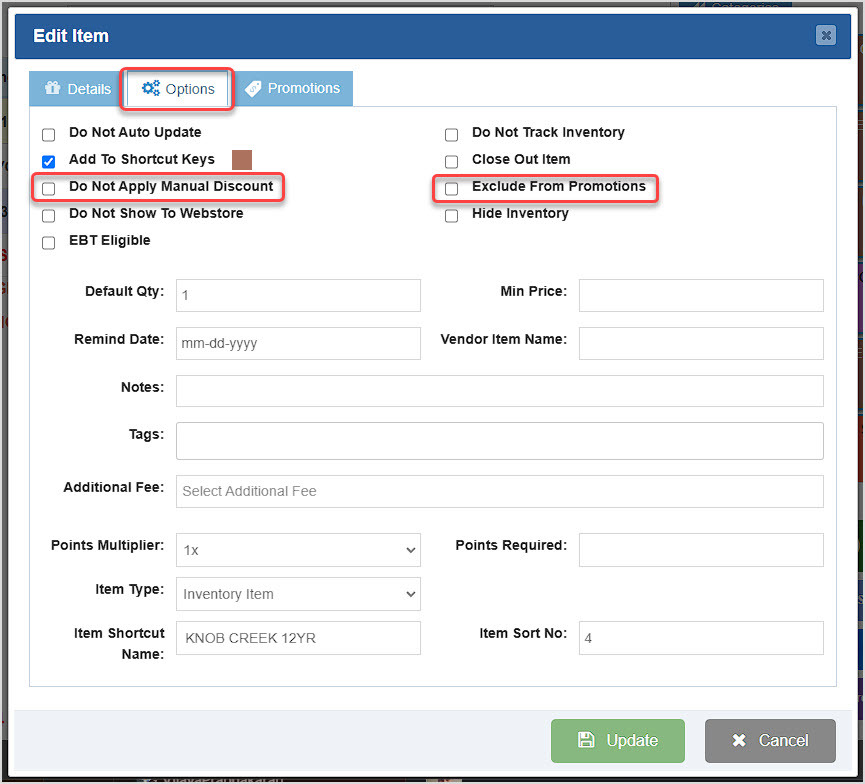
In the Edit Item window, click on the Options tab, and you can configure the product with the checkboxes Do Not Apply Manual Discount and Exclude From Promotions, if you like. Promotion exclusion will prevent the item from being discounted by coupons, rewards, and other promotional discounts. Click the Update button when you have finished your changes.
If your store does frequent discounts in specific percentages or dollar amounts, you can set Shortcut Keys to apply the discount as a Coupon with a single click.
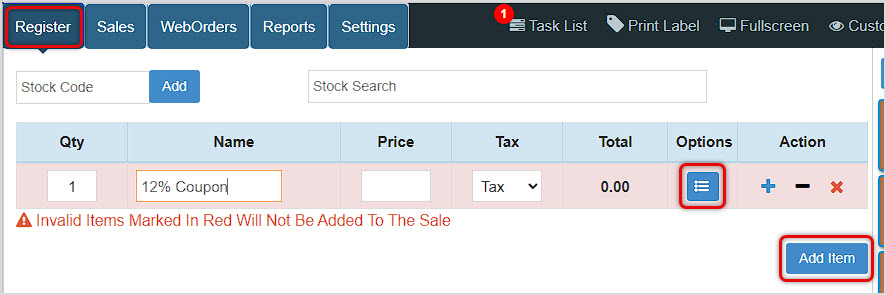
To create a Shortcut key that will apply a coupon discount, in the Register App, click the Add Item button, then enter a Name for the Coupon and click the Options button, as pictured above. Since the item has never been saved, the Item Not Found window will open.
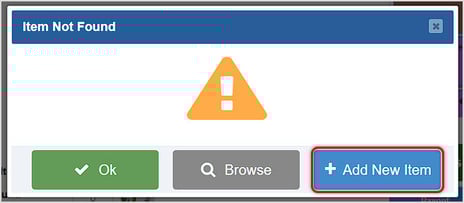
In the Item Not Found window, click the +Add New Item button. The Edit Item window will open for you.
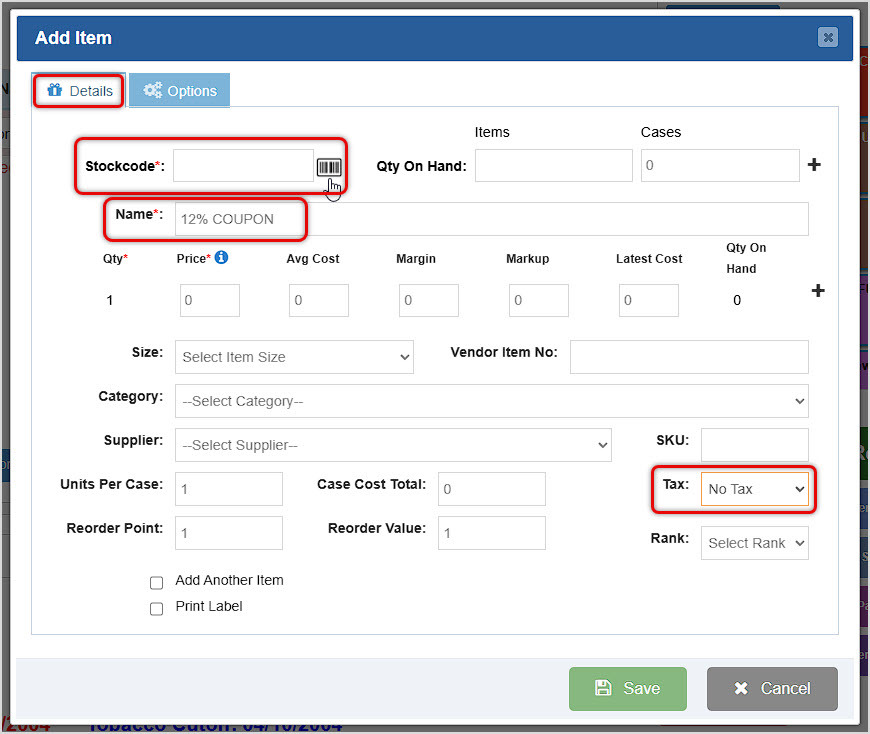
On the Details tab, you can enter a Stockcode or click the Barcode Icon to have the system generate a unique one in the Stockcode field. The item must have a Stockcode to be saved. Enter a Name for your Coupon, and make sure Tax is set to No Tax. Click the Options tab at the top to configure the Coupon further.
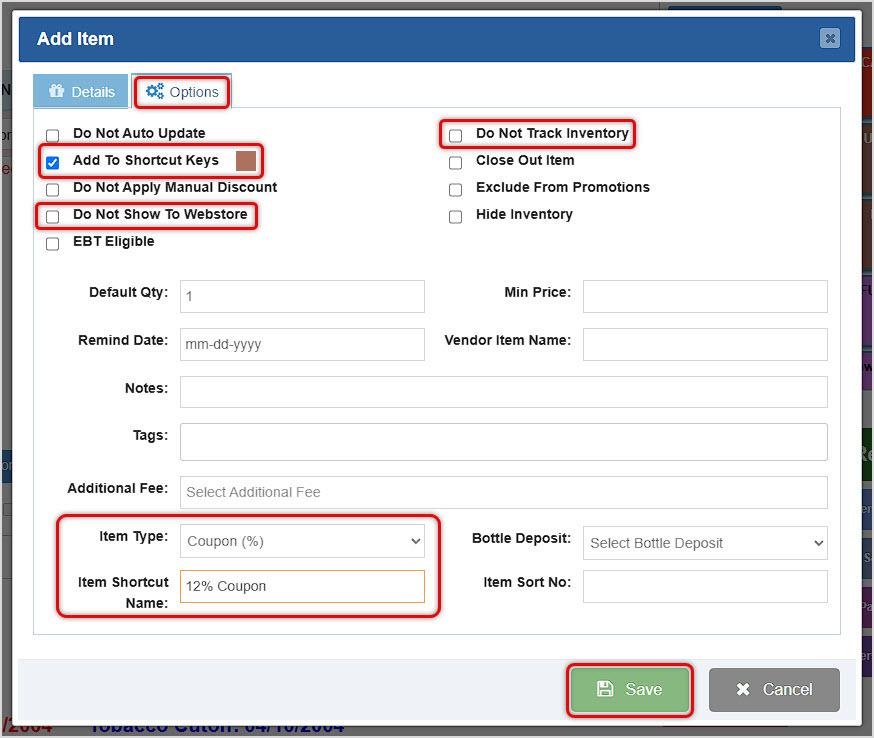
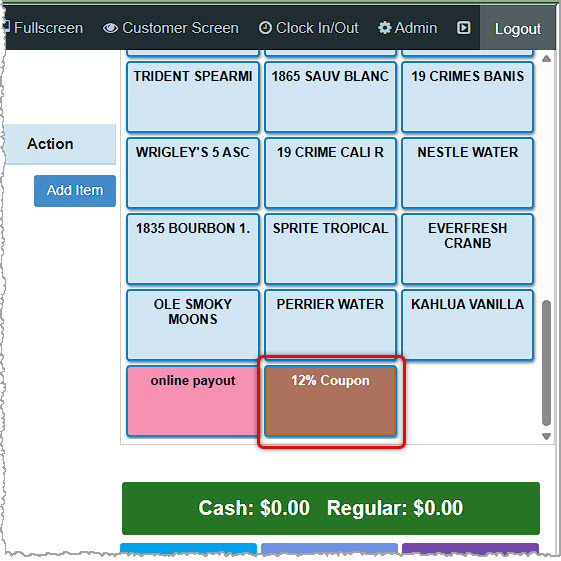
On the Options tab, click the checkbox to Add to Shortcut Keys and if you like you can click the color swatch to change the color of the Shortcut button in the Register. Since it's a coupon, you'll also want to check the box for Do Not Track Inventory, and if you use the Webstore, check the box for Do Not Show to Webstore. Near the bottom of the window, set the appropriate Item Type for your coupon from the drop-list and enter the Item Shortcut Name you want to display on the Shortcut button for the coupon. When you have everything configured, click the Save button. Your new Shortcut button will appear on your list of Shortcut keys as pictured below and you can click it to add the coupon to transactions.
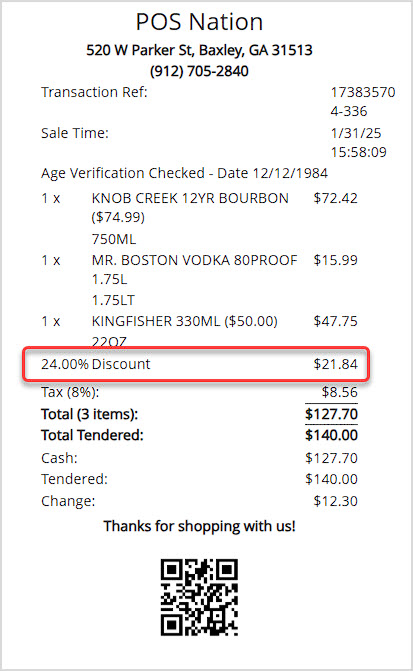
When you have discounted a transaction, the receipt will show the percentage and dollar amount of the discount.
Dual Pricing in the POS Register
How to Create Lottery and Hotkeys
Q: How many different discounts can be applied to an item at once?
A: An item can only have one discount applied at a time, and will not allow an additional discount to be applied until the existing one is removed.
Q: What if I don't want specific items to be able to be discounted?
A: When editing an item, you can turn on the Do Not Discount setting in the Options tab to keep the item from being able to be discounted.
Q: When I try to apply a discount, I get a message saying 'Discount percentage should be between 0 to 100.' What am I doing wrong?
A: This means that you have entered an invalid discount amount which is either less than 1% or greater than 100% of the total item price, and you will need to chose a different amount.
Q: I have a question, but I can't find my answer here. How do I get more assistance?
A: You can ask any question at the number below. Contact our 24/7 support team at: (877) 381-4087
Is this page helpful?
×Help us improve our articles