Whether you need to give refunds or take an item return, the Bottle POS Register makes it easy! Take a look below to learn how you can process refunds and returns..
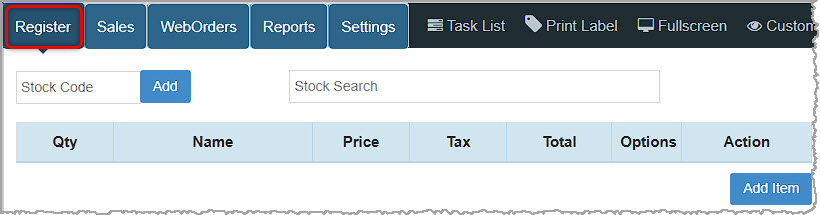
You can get to this part of the system by logging into your Register App. The Register will load for you.
Processing Refunds and Returns in the Register
There are two ways to do a return transaction in the Bottle POS Register. Take a look below to explore each:
Look Up the Transaction in Sales
Use this method if you are doing a return for all items in a completed transaction. See the different methods below to return or refund individual items.
- In the upper left next to Register, click Sales. If you have access to the Transaction Reference ID (TRID) which you can see at the top of the receipt, you can enter the last four digits into the Reference Search and click the Go button.
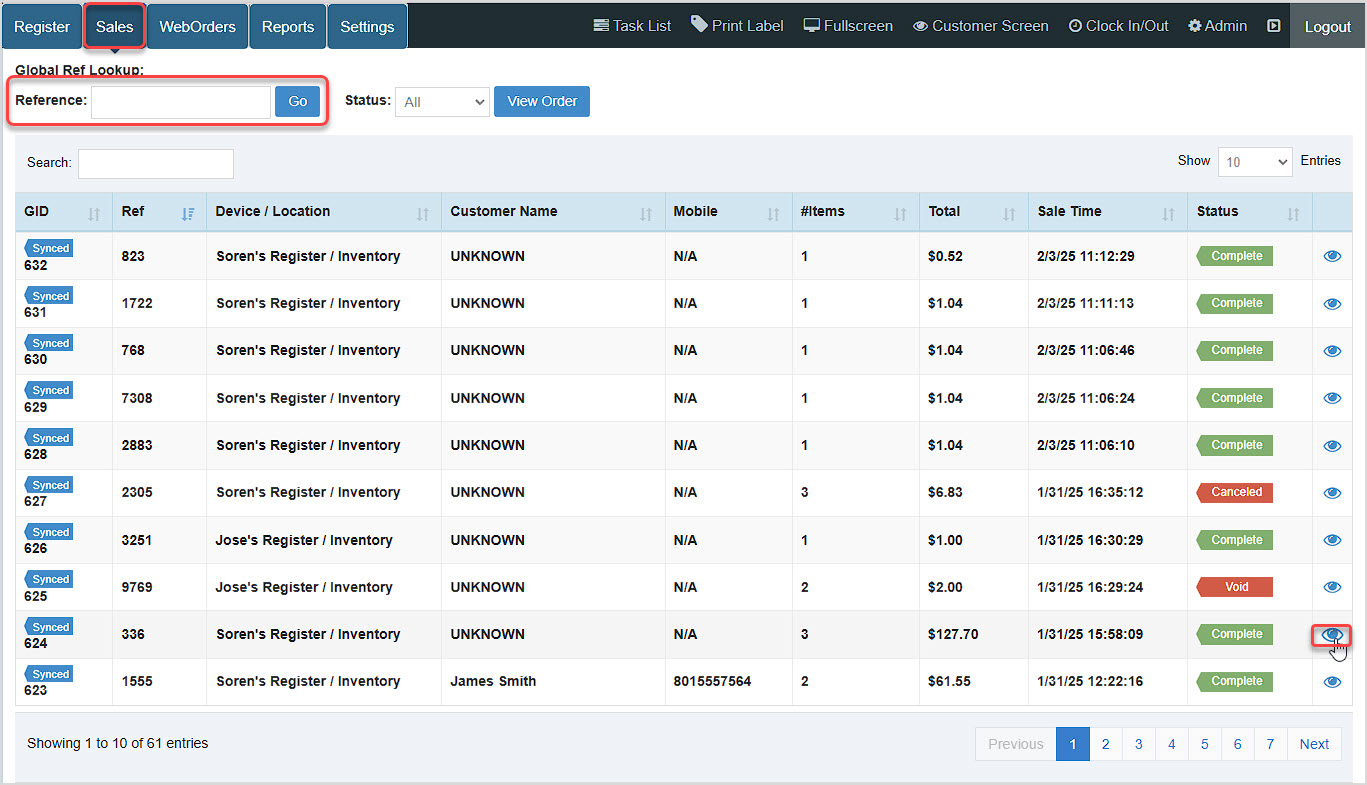
You can also search by Customer Name, Mobile Phone Number, the Sale Time, and the Status.
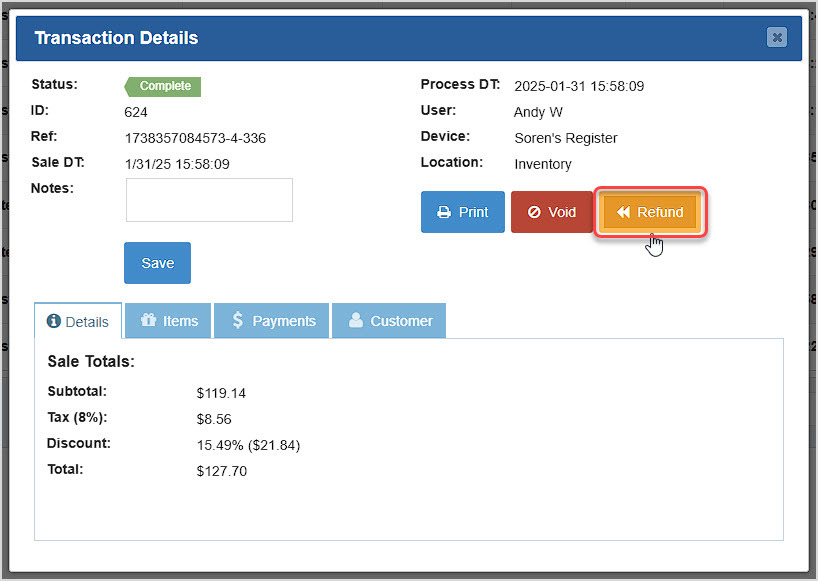
- Click the Eye icon on the right to open the Transaction Details window. In the upper right, click the Refund button, as pictured below. The Refund Transaction window will open.
- In the Refund Transaction window, you'll see the items and quantities from the original transaction and the Refund Amount to be refunded. You won't be able to adjust the quantities (this function will refund everything). Click the button for the Tender type to use for the refund (Cash or Card).
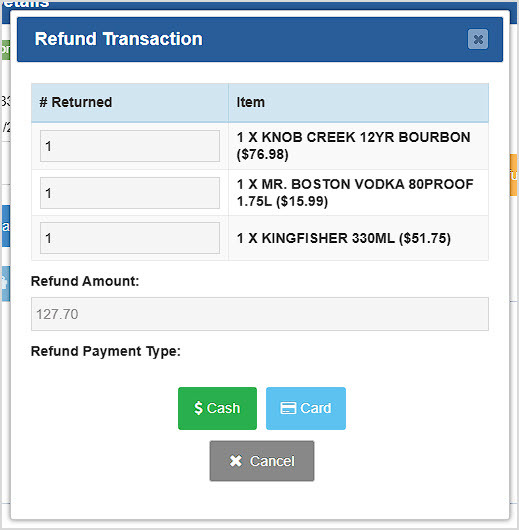
- For this example, we are refunding to Cash. After clicking that button, the system will ask for confirmation that you want to refund the transaction. After clicking Yes you'll be able to print a receipt.
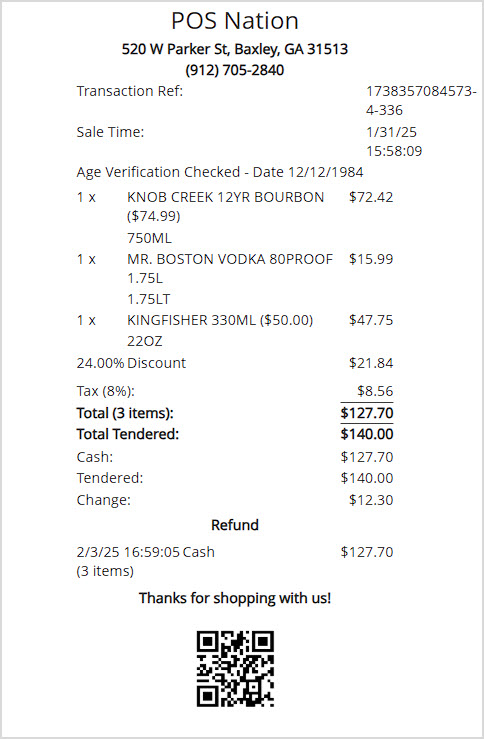
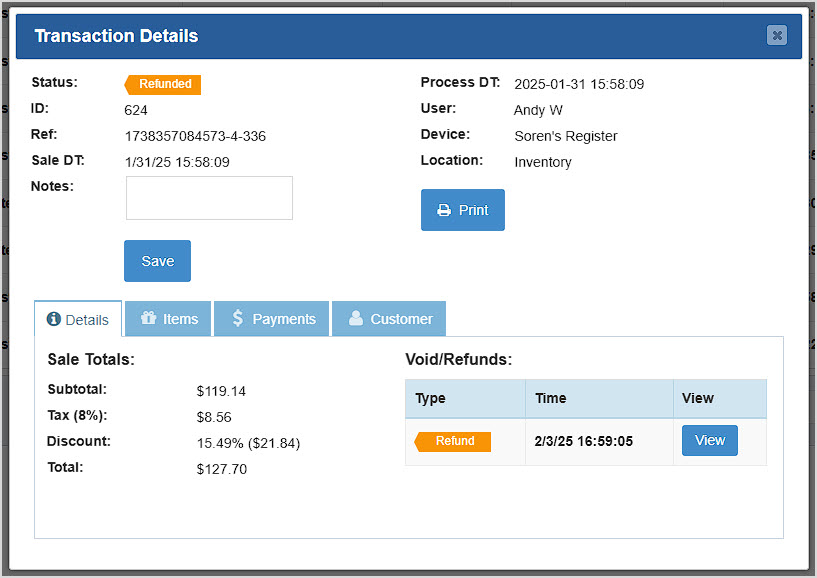
- Once you are done with the receipt, you'll see the Refund information in the Transaction Details window.
Manual Item Return
If you can't find the transaction using the methods above, you can use this method to return any item, if it is eligible according to your store policies for returns.
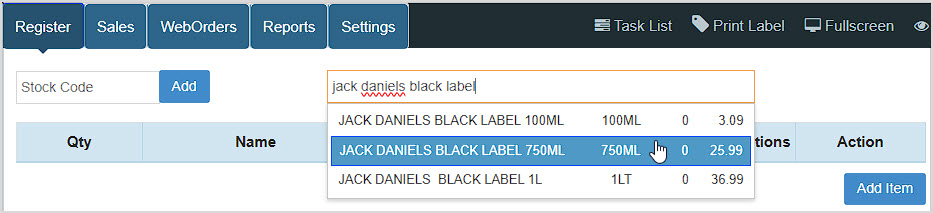
- In the Register, use either the Stock Code barcode scan area or the Stock Search in the upper left of the Register to find the item you want to return.
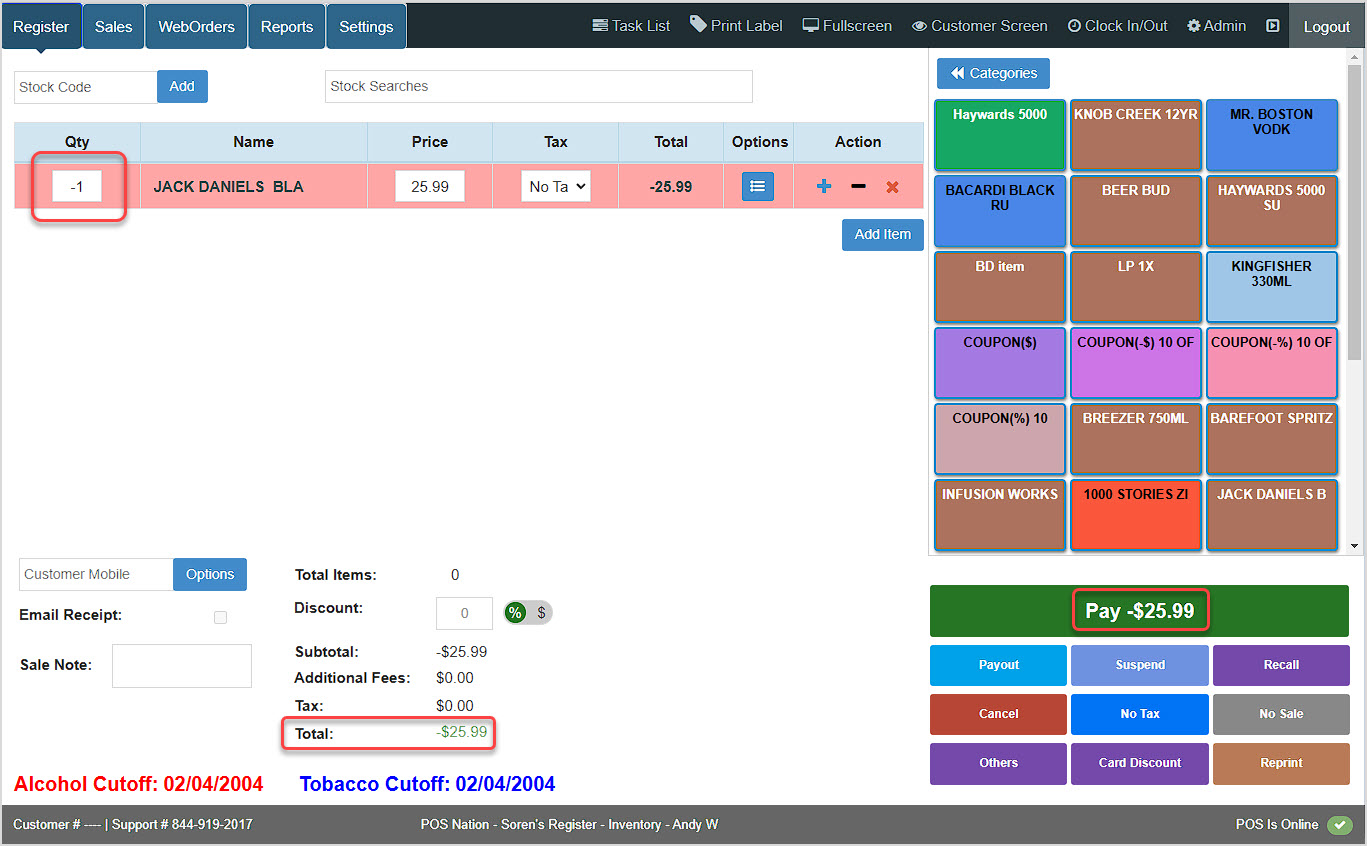
- Give the item a negative quantity.
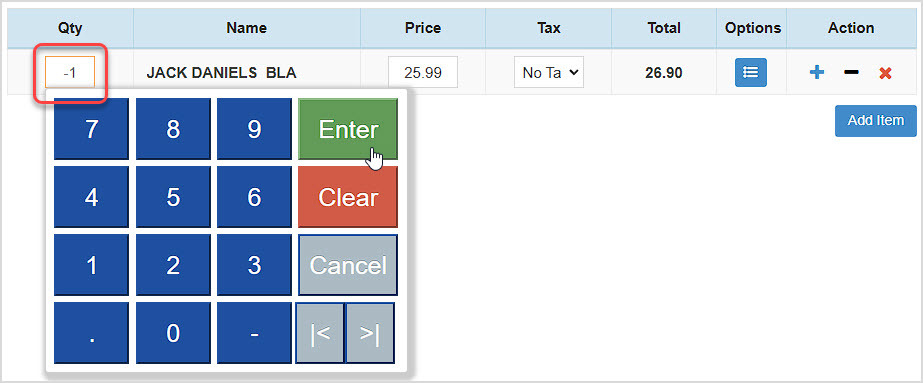
- You'll see the line item turn red, indicating it's a refund, and the Checkout button in the lower right and the transaction Total at the bottom will display the negative amount. Add more items as needed.
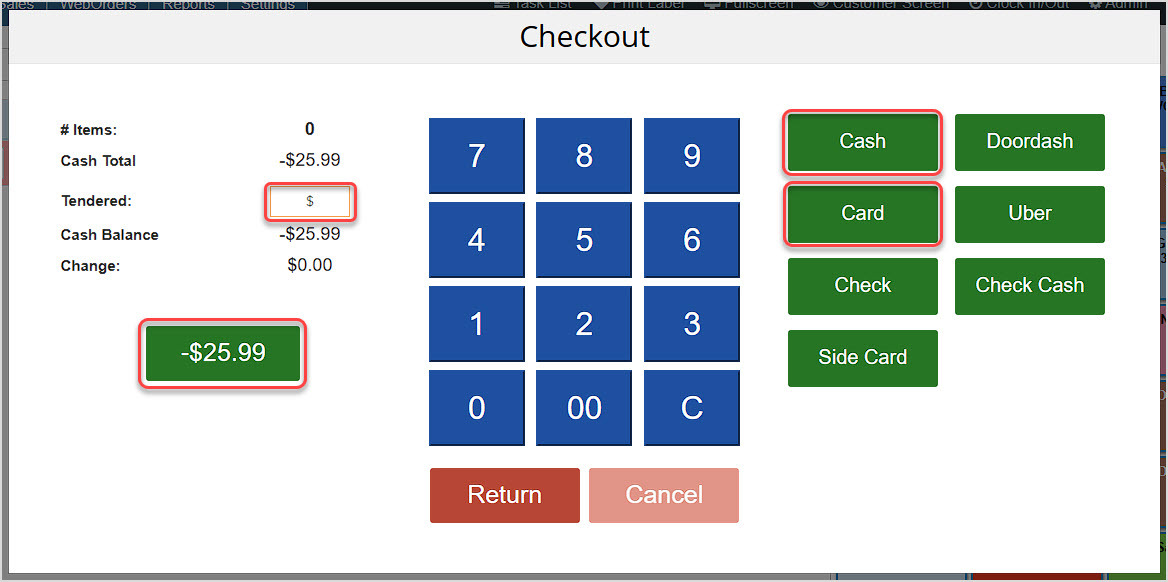
- When you click the Checkout button, the Checkout window will open and you will have options on how to return the funds. If you click the cash amount button in the lower left, the Register will return that amount in Cash automatically. To refund using a different payout method, enter an amount in the Tendered area on the left, then click the button for a different Tender type to process the return. If the customer has a House Account (not pictured), the return can reduce an owed balance on the account. When you have completed the refund, the system will offer to print the receipt in the normal way.
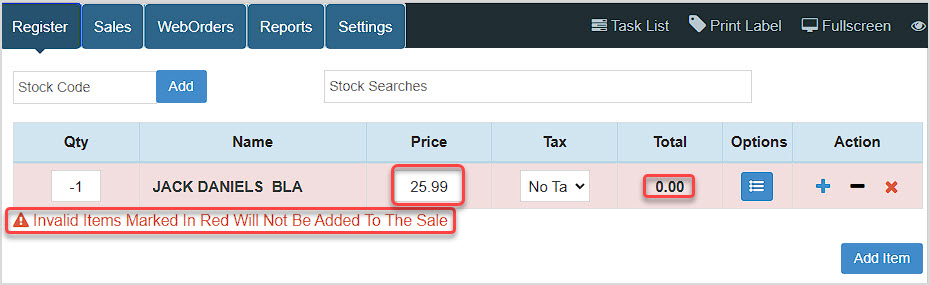
- Troubleshooting: If your POS is not set to work with manual item returns like this, your negative-quantity item won't produce a return amount, as pictured below. Instead, it will be highlighted in red as an Invalid Item. If your manager or the store owner wants to enable this feature, the next step shows how they can do so.
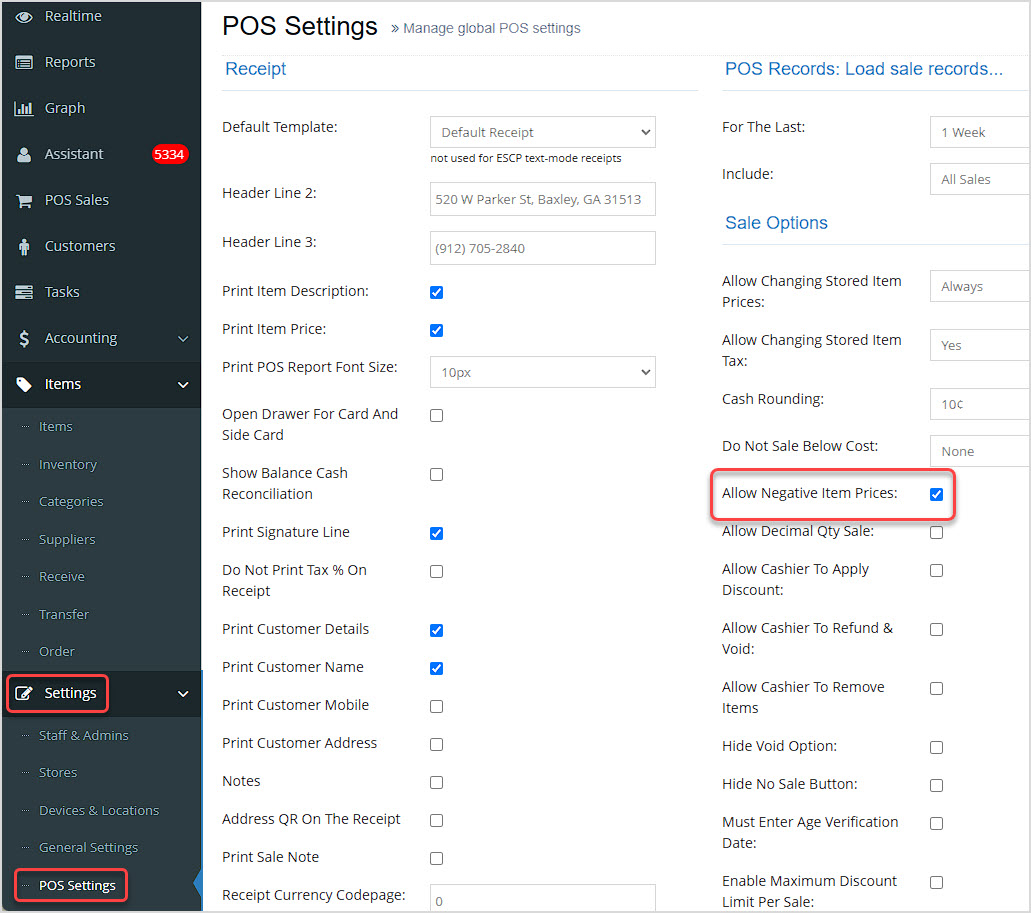
- In the Back Office under Settings > POS Settings, on the right side of the page in the Sale Options area you will find a setting to Allow Negative Item Prices that will allow your sales clerks to run manual returns as described above. If you make changes in this area, be sure to scroll to the bottom of the page and click the Save button when you're done.
Related Topics
Ringing Up Sales with the POS
POS Settings
How to Set Up and Use a Customer House Account
Frequently Asked Questions
Q: How can I set a return policy to print out on the bottom of my receipts?
A: Your Bottle POS allows you to control everything that's printed on your business receipts. Review the following article for more information: How to Customize Your Receipt Header and Footer
Q: How can I set my Register to require manager approval to allow returns?
A: You can allow or disallow the ability to process returns for a User Account by editing that User Account's permissions. Review the following article for more information: How to Add Employees
Q: I have a question, but I can't find my answer here, how do I get more assistance?
A: You can ask any question at the number below. Contact our 24/7 support team at: (877) 381-4087








 October 01, 2024
Is this page helpful?
×Help us improve our articles