






Reprinting Transaction Receipts
Reprinting a Transaction Receipt You can reprint transaction receipts from the Bottle POS and Admin.

 October 01, 2024
Learn how to take credit card payments with the MX Merchant Express app when your internet connection is down and your Bottle POS is offline. Take a look at how you can set this up.
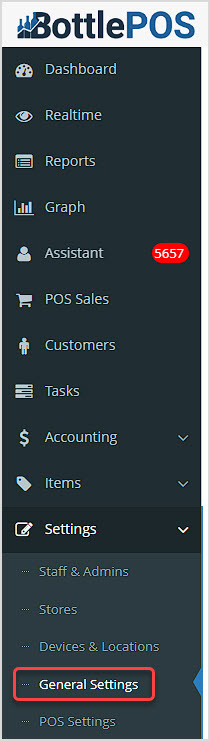
To configure your Bottle POS to be able to work offline, you'll start by logging into the Admin app. You can get to this part of the system by going to Settings > General Settings.
Scroll down to the area labeled Tender Settings. You'll see it on the right side, near the bottom of the page.
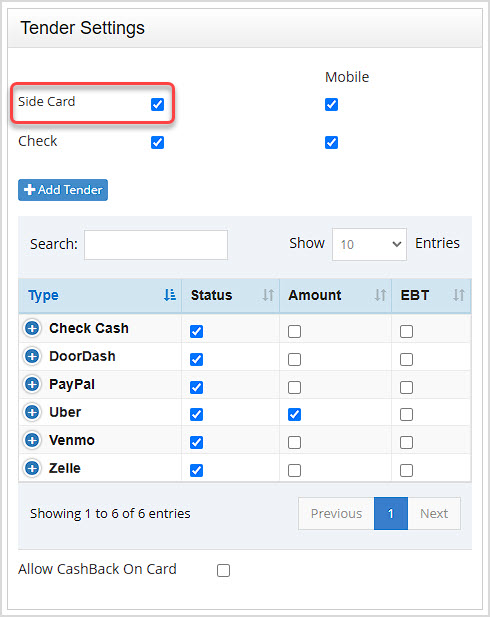
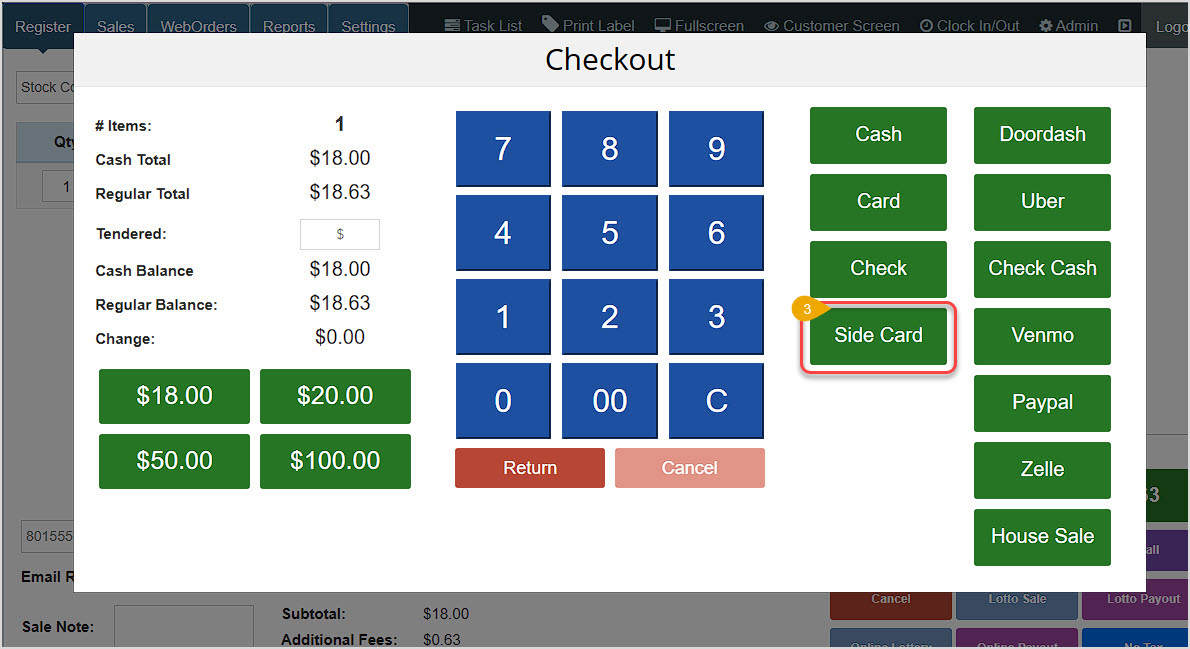
Side Card is any non-integrated card processing service. Use of this tender-type in the Register requires that payment be taken using that external processing and then you can complete the transaction.
If the Side Card setting is not currently active, check the box pictured above so that it will be a Tender option in your Register.
Once you have made the configurations you want, click Save at the bottom. Please note that there is a lot for this page to check, so be patient while it saves your changes. You'll get a popup confirmation when it's finished.
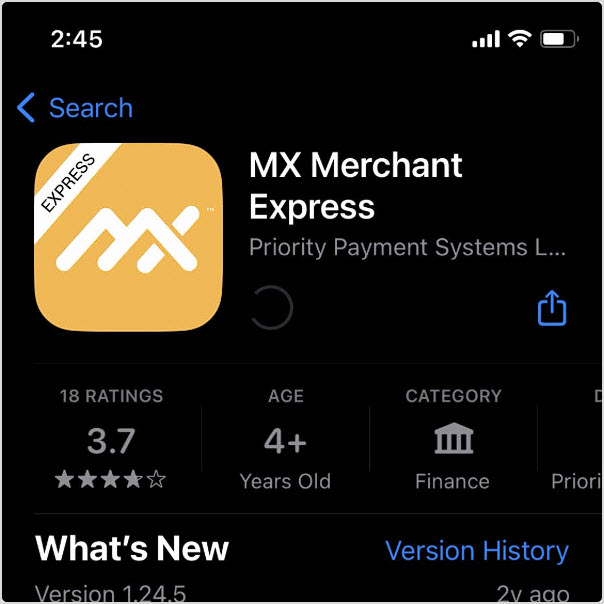
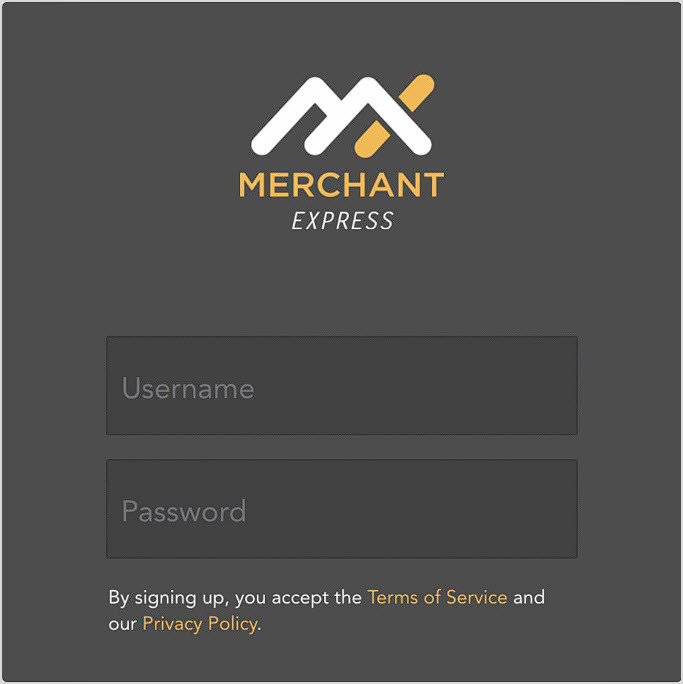
The MX Merchant Express app will connect to your processing account and allow you to process cards using your cellular data on any mobile device. You can download and install this app from the Android Play Store or the Apple App Store.
Please Note: This option is only available for merchants using Priority TSYS as their payment processor. If you use Bottle POS Payments as your processor, you can use the Portal Virtual Terminal to run charges if the system is unavailable.
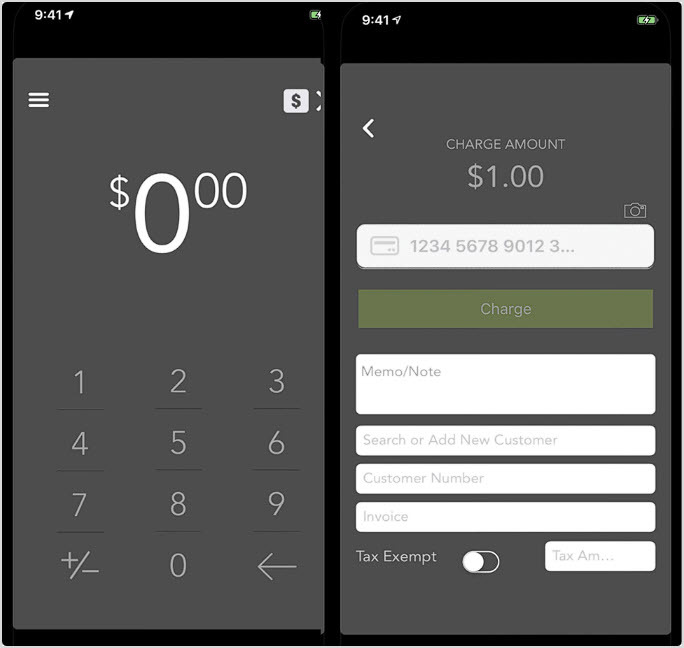
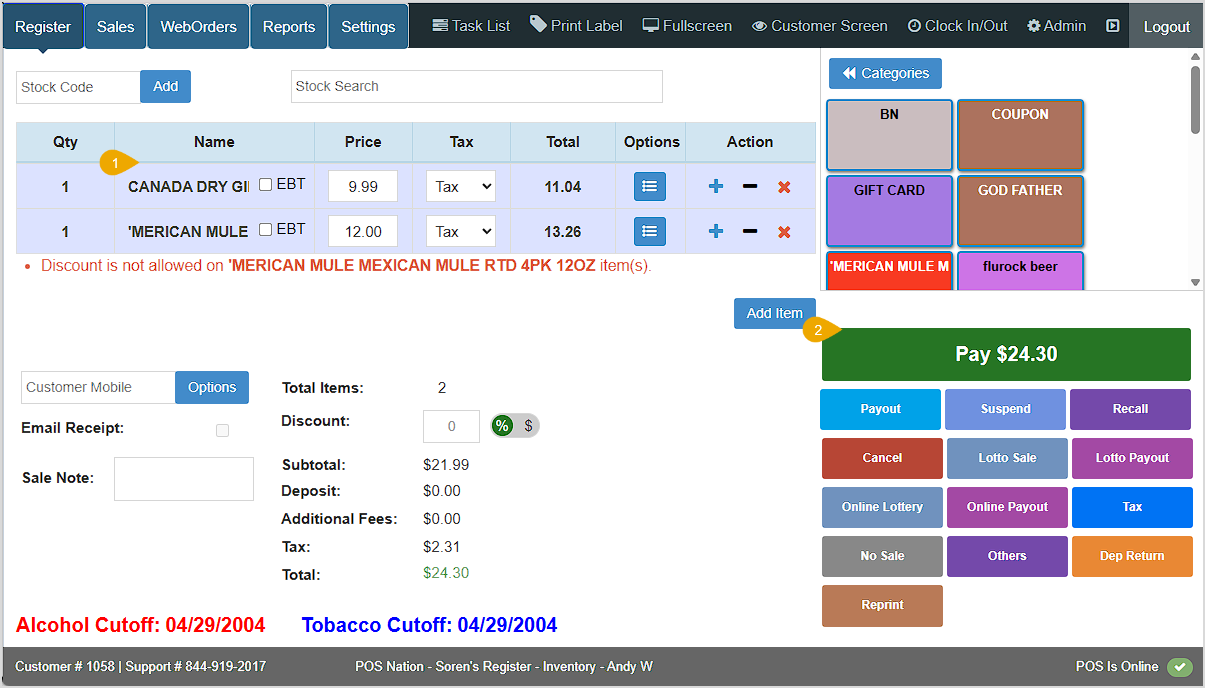
Now when you do a Register transaction while your internet isn't available, even though the Register displays Offline in the lower right, you can complete the sale. When you go to the final step of Checkout, youll finish the transaction with the Side Card tender so that your reports and inventory will be accurate.
Please Note: Any offline sales made using this method will appear under the Side Card tender in your reports and will not appear under Card.
Q: Where can I view how much money I made from my external Side Card sales?
A: Any report which shows sales by tender such as the Summary or Day report will show the Side Card tender and will have a total for you for whatever period you are viewing.
Q: I have a question, but I can't find my answer here, how do I get more assistance?
A: You can ask any question at the number below. Contact our 24/7 support team at: (877) 381-4087
Is this page helpful?
×Help us improve our articles