How to Void Transactions

October 01, 2024
If you have Admin permissions in the Bottle POS, you can void transactions from the Bottle POS app or from the Admin. Take a look at what you can do!
Voiding a Transaction from the POS
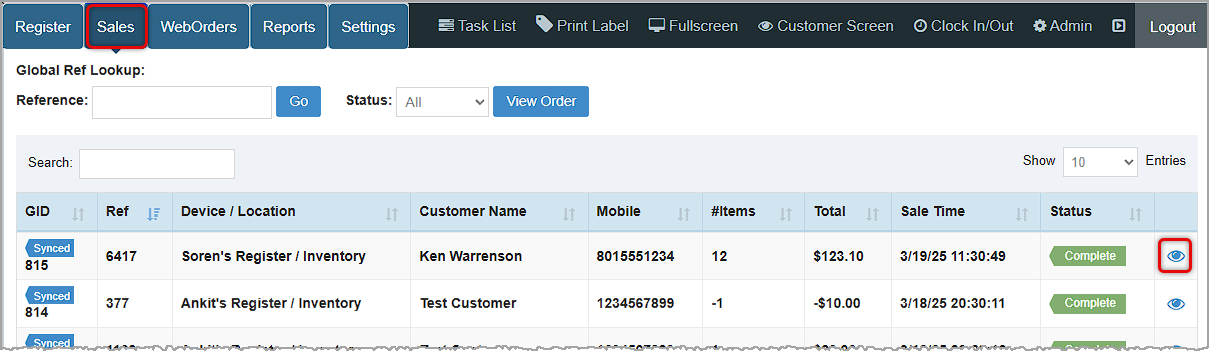
You can get to this part of the system by logging into your Bottle POS app and clicking on Sales in the upper left.
Please Note: Once a transaction is voided it cannot be undone.
- To find the transaction you want enter its Ref ID (the handful of digits after the final hyphen will work) in the Reference Search in the upper left and click the Go button. You can also use the Search field just above the data table to search by any name, number, amount, or date.
- When you've found your transaction, click the Eye icon on the far right to open the Transaction Details window.
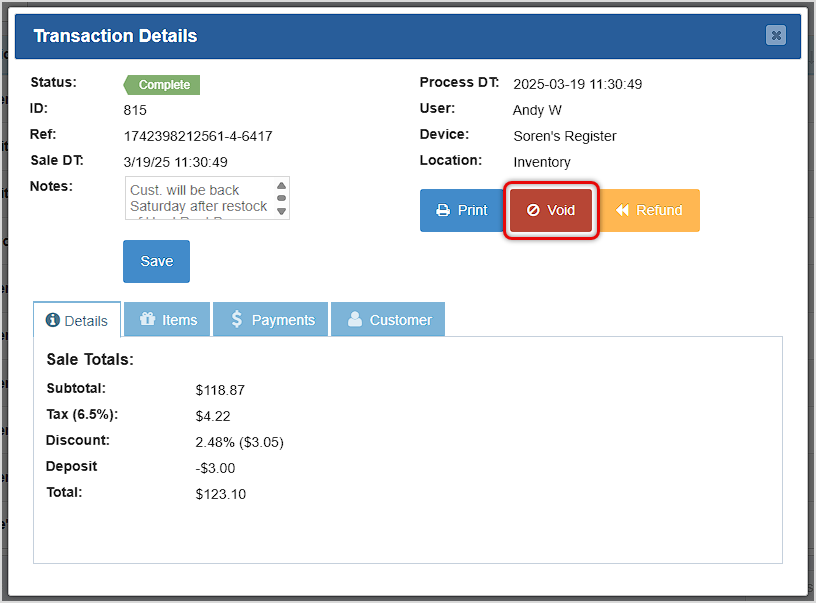
- Click the Void button in the upper right. The Void Transaction window will open.
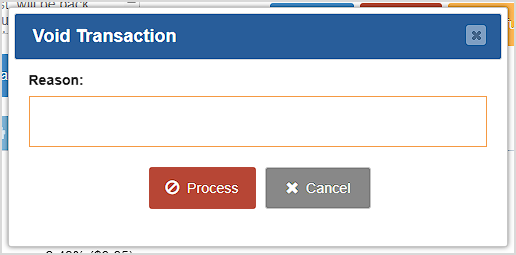
- Enter a Reason for why you are voiding the transaction.
- Click the Process button when you are ready. You'll be asked to confirm that you want to void the transaction. When you click Yes, all charges will be reversed, inventory will be restored, sales reports will no longer include the revenues as takings, and the transaction will have the Void status moving forward. This action cannot be undone.
Voiding a Transaction from the Admin
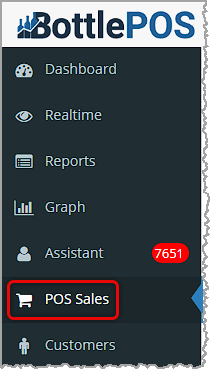
You can get to this part of the system by logging into your Admin and clicking on POS Sales on the left.
Please Note: Once a transaction is voided it cannot be undone.
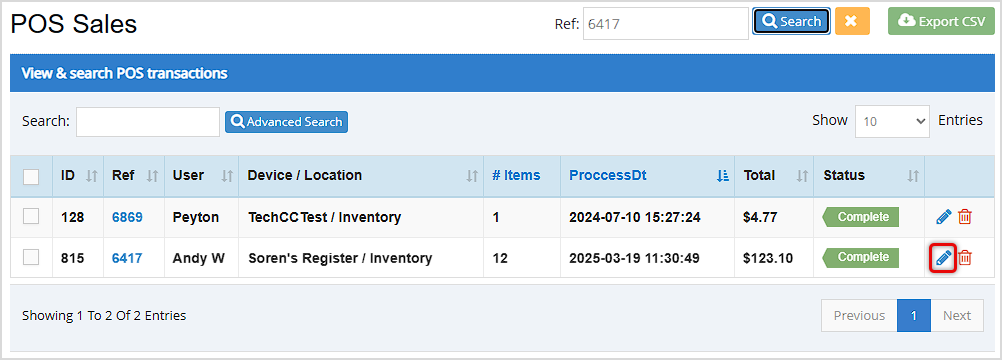
- Search for the transaction you want to void using either Ref Search at the top (you can use the last few digits in the Ref ID), the Search just above the data table (you can search by any number, name, date, or amount), or you can use the Advanced Search using any information you might have about the transaction.
- Click the Pencil icon on the far right for that transaction, as shown in the following image. The Transaction Details window will open.
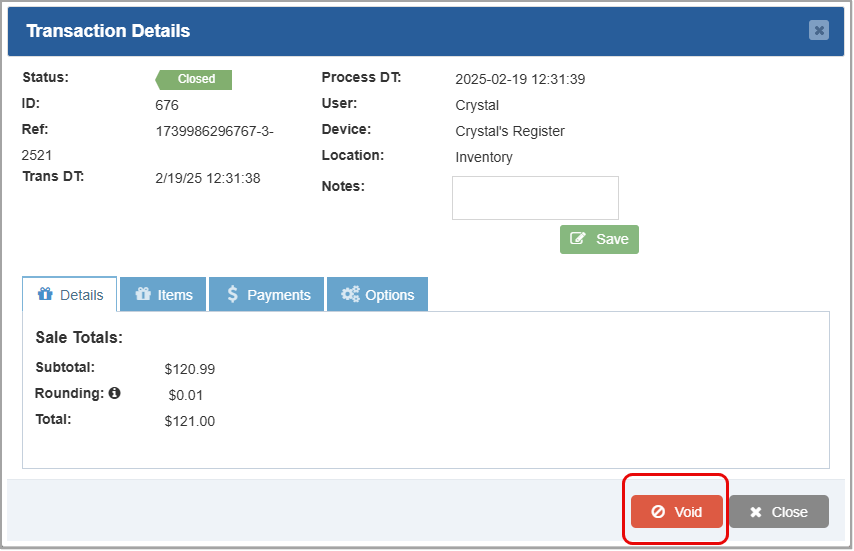
- Click the Void button. The Void Transaction window will open.
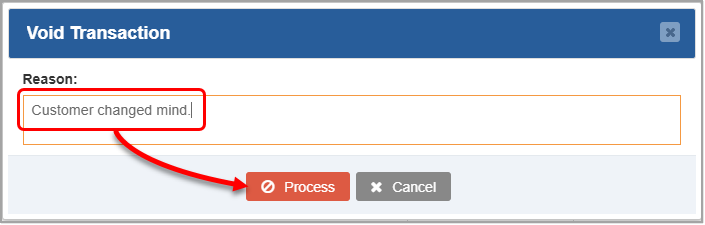
- Enter a reason for the void and click the Process button. You'll be asked to confirm that you want to void the transaction. When you click Yes, all charges will be reversed, inventory will be restored, sales reports will no longer include the revenues as takings, and the transaction will have the Void status moving forward. This action cannot be undone.
Related Topics
How to Find Transactions
How to Process a Return
Working With Transaction Details in the POS
Working With Transaction Details in the Admin
Frequently Asked Questions
Q: What's the difference between a voided transaction and a deleted transaction?
A: A voided transaction remains as a valid transaction in the database. A deleted transaction will have no permanent record. It is important to know that neither action can be reversed.
Q: I have a question, but I can't find my answer here, how do I get more assistance?
A: You can ask any question at the number below. Contact our 24/7 support team at: (877) 381-4087
Your Admin Dashboard is your hub for keeping your finger on the pulse of your business. Take a look
Your Admin Realtime page gives you a live view of your sales as they come in and has some useful uti
The Reports in the Bottle POS Admin can show you details about all of your data, however you need to








Is this page helpful?
×Help us improve our articles