






How to Add Employees - Staff & Admins Settings
Learn how to successfully add new employees to your Bottle POS and to set their security permissions

 October 01, 2024
The Utilities page has useful apps and templates the support team can set up for you. Take a look at what's available!
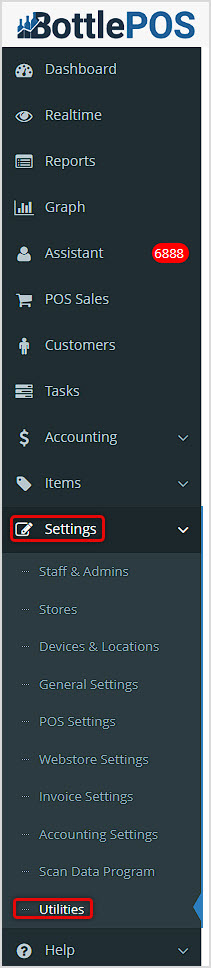
You can get to this part of the system by logging into your Admin app and clicking Settings on the left. In the menu that opens, click on Utilities at the bottom. In this article we'll explore what is there for you.
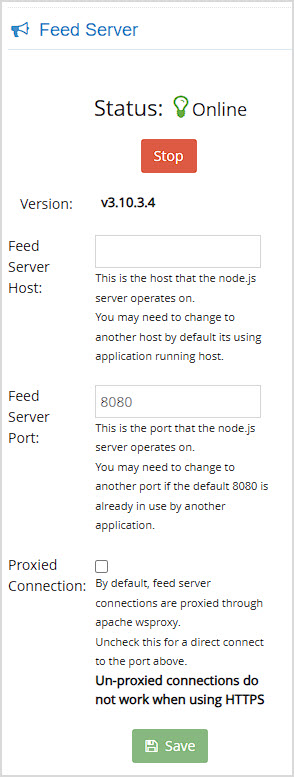
The Feed Server is what allows the Bottle POS database to send updated data to the POS. This area will be set up by the Bottle POS team, and you don't need to do anything here. You can see in this area the Status of the Feed Server, which provided POS data to the Desktop App and web browser pages in desktop or mobile uses of the system. The Status will either be Online or Offline.
Please Note: If you are using the Desktop App and the Feed Server goes offline, the POS app can still work and will save data to be updated when the system comes back online.
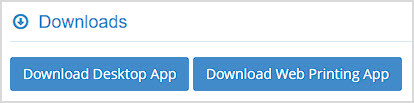
Download Desktop App - Click the Download Desktop App button to download the installation file for the latest version of the Bottle POS desktop app. Once the download has finished, double click the file and follow the on-screen instructions to install the app. The Desktop App is very stable and fast and can operate in an Offline mode if the system should experience down time. If you have any questions about the app or its installation, contact the Support team and we will be happy to assist you.
Download Web Printing App - Click the Download Web Printing App to download the installation file for the latest version for use with your Zebra label printer. Once the download has finished, double click the file and follow the on-screen instructions to install the app. The Web Printing App is used when setting up a Zebra label printer for use with the POS.
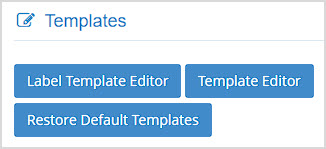
This area allows you to work with the various Templates in the system for Labels, Receipts, Invoices, and other system-generated documents.
Label Template Editor - The Bottle POS offers a wide variety of Item Label Templates for both the Dymo 550 label printer and the Zebra label printers. These templates are not to be edited, and the features for editing and adding templates are for support team use only.
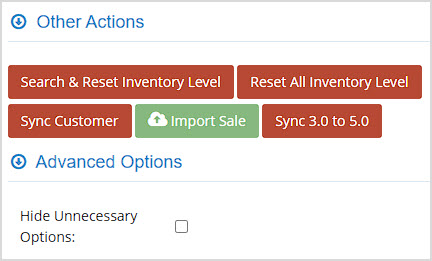
These controls are for the Bottle POS team only, you won't need to do anything in this area.
How to Take Card Payments Without Internet Using the MX Merchant Express App
How to Print Labels from the POS
How to Generate and Email an Invoice from a Sale
Bottlezoo Online Ordering Walkthrough
Q: I have a question, but I can't find my answer here, how do I get more assistance?
A: You can ask any question at the number below. Contact our 24/7 support team at: (877) 381-4087
Is this page helpful?
×Help us improve our articles