






How to Add Employees - Staff & Admins Settings
Learn how to successfully add new employees to your Bottle POS and to set their security permissions

 February 19, 2026
Our multi-store features are designed to make managing multiple locations simple and efficient. With HQ Store & Branch Stores Sync, you can centralize item creation and updates, while Customer and Customer Point Sync ensure loyalty data stays consistent across all stores. The Item Detail View provides a single screen to compare inventory and pricing across locations, and Multi-Store Reporting gives you centralized visibility into sales, payroll, transfers, and stock levels. Store-to-Store Stock Transfers complete the workflow by allowing seamless inventory movement between locations—helping you stay in control of your entire store network from one place.
• HQ Store & Branch Stores Sync
• Customer Data Sync
• Item Detail View
• Multi-Store Reporting View
• Store-to-Store Stock Transfers
HQ Store & Branch Stores Sync allows you to designate one store as your HQ Store, which acts as the central source of truth. Selected product data from the HQ Store is automatically synced to one or more Branch Stores, keeping your catalog consistent across locations.

Q. What is HQ Store & Branch Stores Sync?
A. With HQ Store & Branch Stores Sync, you can centralize item creation and updates.
Q. How often does the sync run?
A. Sync runs automatically on an hourly basis. Whenever a change is made in the HQ Store—such as creating a new item or updating item details—the update is pushed to all connected Branch Stores shortly after, with no manual action required.
Q. Who can set up or update sync?
A. Our support team can set up or update the sync job for you once your store is live. You can also work with your assigned implementation specialist during your initial onboarding. Typically, it takes 24 to 48 hours to set up the sync.
Q. What data can be synced from the HQ Store?
A. Product data will sync. You control exactly what data is synced. Supported fields include:
This flexibility allows you to standardize critical data while keeping local control where needed.
Q. Can I sync only new items from the HQ Store?
A. Yes. You can choose to sync newly created items only, ensuring that any new products added in the HQ Store are automatically created in Branch Stores—without modifying existing items.
Q. Can item updates (like price or category changes) be synced as well?
A. Yes. When item detail syncing is enabled, updates made in the HQ Store—such as price changes, category updates, or other supported fields—are automatically applied to all Branch Stores. You can pick either or both new item sync and item detail sync.
Q. Can a Branch Store be connected to multiple HQ Stores?
A. No. A Branch Store can be connected to only one HQ Store at a time. This ensures there is always a single, clear source of truth and prevents conflicting updates.
Q. Can I create multiple HQ Stores?
A. Yes. You can set up multiple HQ Stores and assign different Branch Stores to each one. This is useful for managing stores by region, brand, or business unit.
Q. Can I group different Branch Stores under different HQ Stores?
A. You can create multiple HQ–Branch groupings, each with its own sync settings. This allows you to manage complex store networks while maintaining flexibility and control.
Q. Do all item fields have to be synced?
A. No. Syncing is configurable. You decide which item fields and sync behaviors (new items, updates, etc.) should apply, allowing you to tailor the setup to your business needs.
Q. Can I exclude items I don’t want to sync from HQ stores?
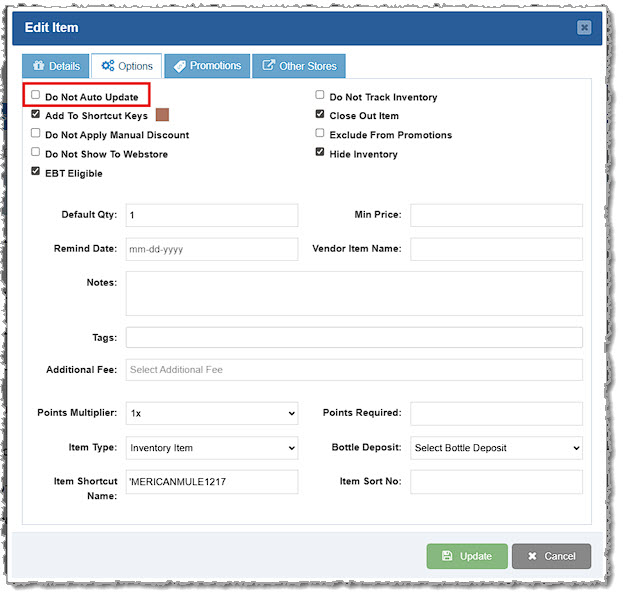
A. Yes. You can enable the Do Not Auto-Update setting at the item level (from the Admin Items page, Edit Item > Options tab), and it will exclude it from receiving updates from the HQ store. In addition, you can use bulk updates to mass change multiple items or categories.
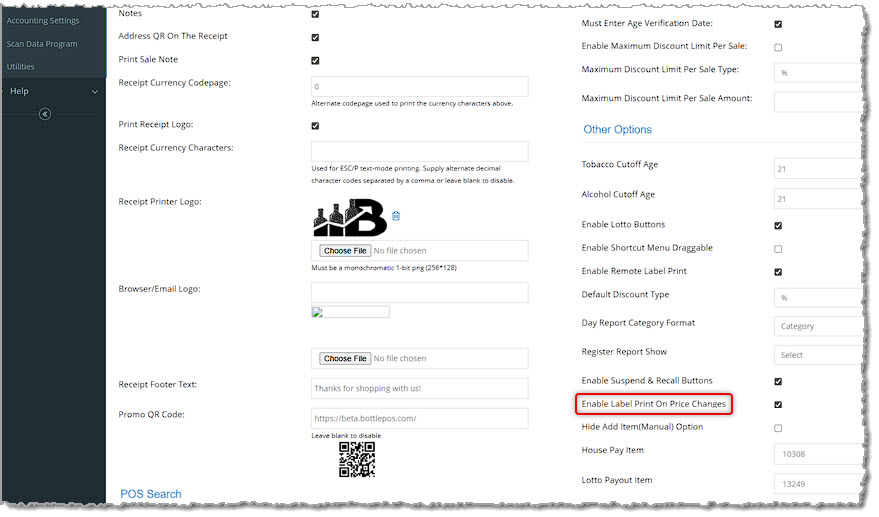
Q. Can labels be auto printed at branch stores upon pricing changes?
A. Yes. If you have enabled the Enable Label Print on Price Changes setting within your branch store’s Admin (under Settings > POS Settings in the Other Options section) labels will print when changes occur.
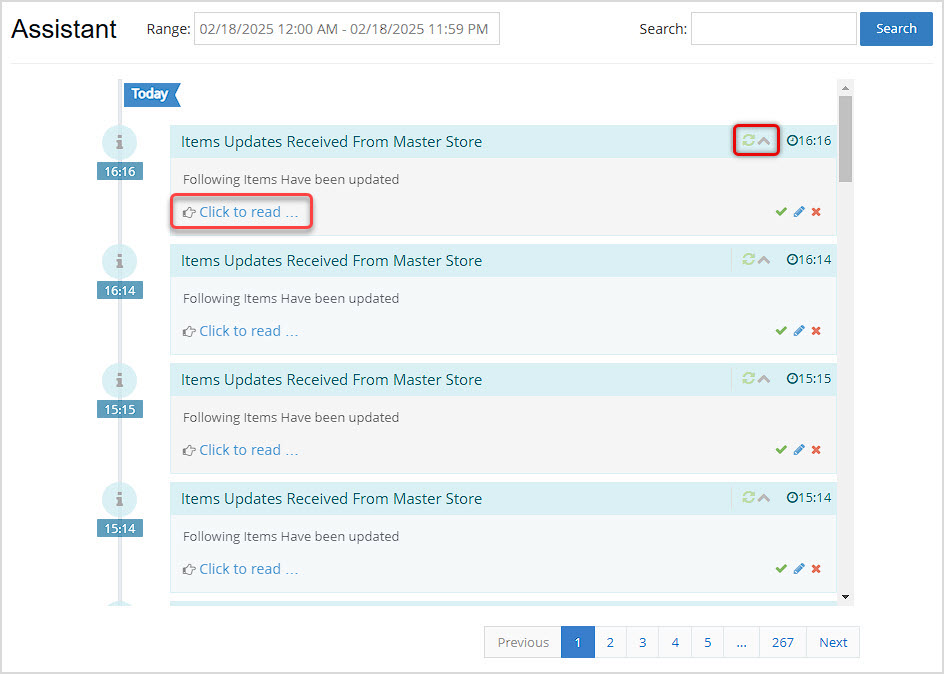
Q. How can I identify What Changes Occurred and When?
A. All changes related to automated item syncs can be found within the Assistant tab in your store's administrative portal.
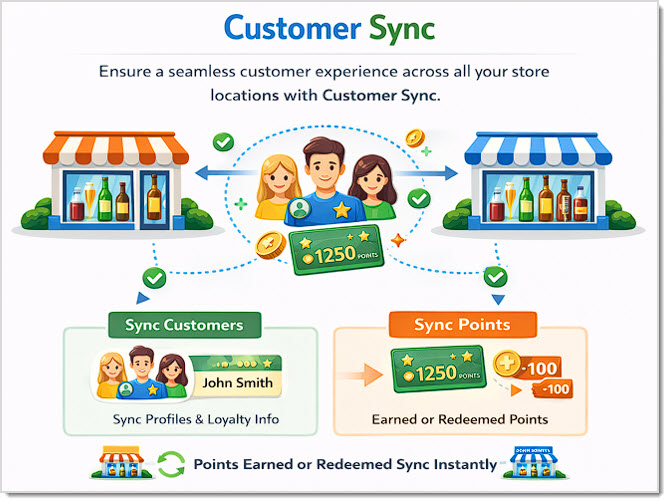
Customer Sync ensures that customers added to any store are automatically shared across all connected stores. In addition, loyalty points stay fully in sync—whether points are earned or redeemed in one store; the updated balance is reflected everywhere—giving customers a seamless experience across all locations.
Q. How many customers can I have?
A. There is no hard limit on the number of customers you can sync. Customer Sync is designed to scale with your business, whether you have hundreds or hundreds of thousands of customers across your stores.
Q. What field is used to identify a customer?
A. Customers are uniquely identified by their mobile phone number. This ensures that the same customer is recognized across all stores and prevents duplicate customer records.
Q. Can different stores have different rewards or redemption programs?
A. Yes. Each store can maintain its own redemption rules and reward programs. While customer profiles and point balances are shared, how points are redeemed can vary by store—giving you flexibility to run store-specific promotions or loyalty strategies.
Q. Are loyalty points synced across stores?
A. Yes. Loyalty points are fully synced. When points are earned or redeemed at any store, the updated balance is reflected across all stores where Customer Sync is enabled.
Q. How often does Customer Sync run?
A. Customer Sync happens almost immediately. Customer updates and point changes are synced shortly after they occur, ensuring a near real-time and seamless experience for both staff and customers.
Q. What’s the benefits of Customer Sync?
A. Customer Sync allows customers to earn and redeem points anywhere, without needing multiple profiles—delivering a consistent, frictionless loyalty experience across all locations.
Q. Who can set up or update customer sync?
A. Our support team can set up or update the sync job for you once your store is live. You can also work with your assigned implementation specialist during your initial onboarding.
With Item Details, you can view products across multiple stores on a single screen—showing on-hand quantity, selling price, item name, and other key details for each location. This centralized view makes it easy to compare inventory and pricing at a glance and quickly identify the information you need.
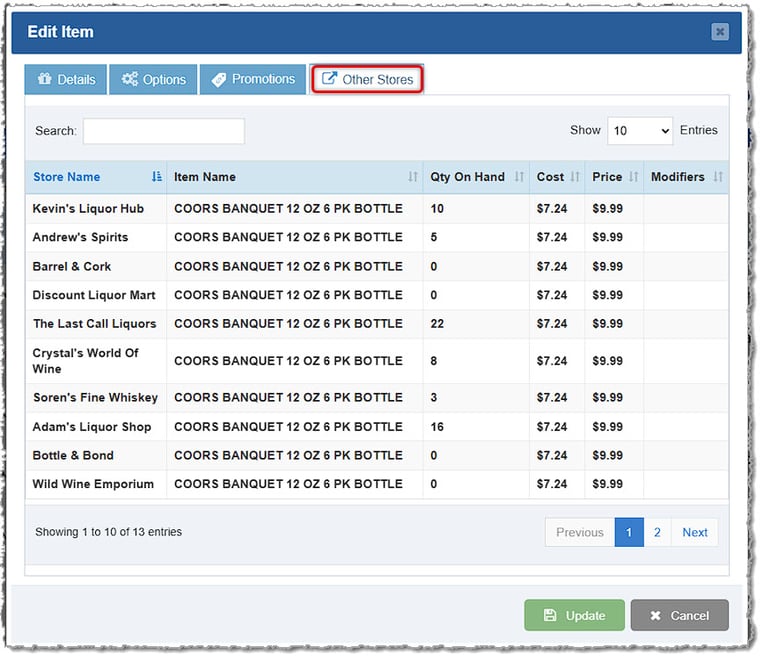
Q. Who can set up or update cross-store item detail view?
A. You can add stores under the admin > settings > stores section. Our support team can also help you set this up as well. You can also work with your assigned implementation specialist during your initial onboarding to have this set up.
Q. Which module is this visible from?
A. You can view this from the Items, Receive, Order, and Transfer modules in your Admin portal.
Q. Can item details be accessed from the POS?
A. Item details are currently available in several modules in the admin section as well as in the POS.
For multi-store setups, you have access to powerful reporting tools directly from the HQ store. View and manage reports for all locations in one centralized place, including Summary Reports, Transfer Reports, Payroll Reports, and Low Stock Reports—giving you full visibility across your entire store network.

Q. What reports are supported?
A. Multi-Store Reporting includes several key reports to give you full visibility across locations, including:
• Summary Report
• Transfer Report
• Low Stock Report
• Payroll Report
All reports are accessible from a centralized view, making it easy to monitor performance and operations across stores.
Q. Can I view payroll and clock-in/clock-out activity across multiple locations?
A. Yes. You can view payroll and time-tracking data across multiple locations. By assigning the same mobile number to a staff member in the Staff & Admin section across different stores, the system automatically groups their activity—allowing you to see combined payroll and clock-in/clock-out data in one place.
Q. Can I see reports for multiple locations on the same page?
A. Yes. In the Summary Report, you can view data from all locations on a single screen. This provides a high-level overview without needing to switch between stores.
Q. Can I control who has access to multi-store reports?
A. Yes. Access to reports can be managed in the Staff & Admin section. You can enable or restrict report visibility using permission checkboxes, ensuring only authorized users can view reports for other stores.
The Transfer feature allows you to move inventory between stores with ease. The sending store initiates the transfer, and once the items are received, the receiving store simply confirms the transfer—ensuring accurate inventory tracking at both locations.
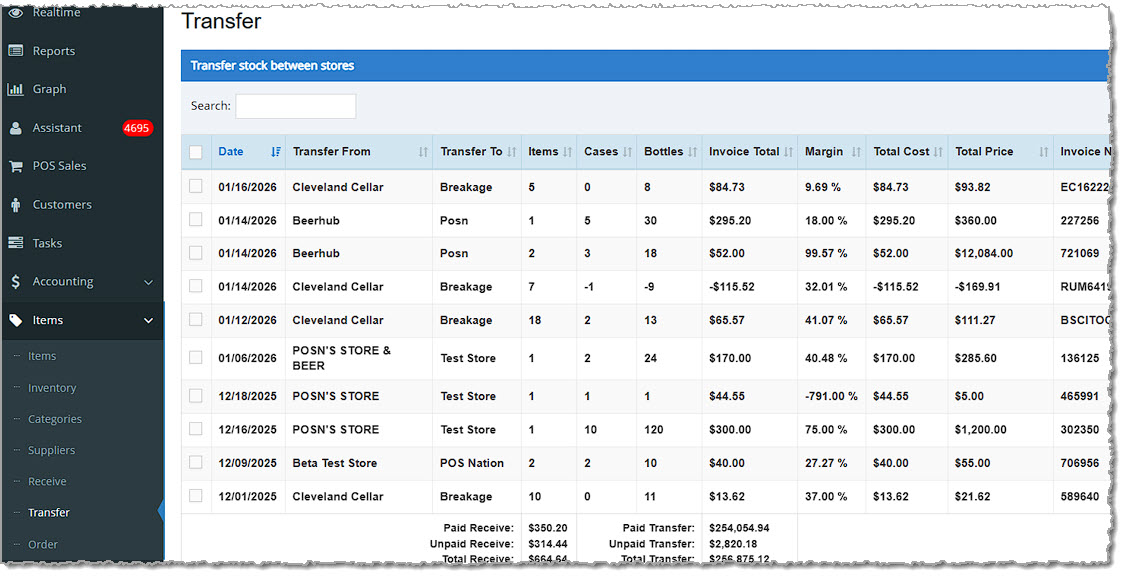

Q. Who can create a transfer?
A. Transfers can only be created by the store that is sending the goods. You can control which specific users are allowed to initiate transfers by adjusting permissions in the Staff & Admins section for that store.
Q. Can a transfer be canceled by the receiving store after it has been committed?
A. No. Once a transfer has been committed by the sending store, it cannot be canceled by the receiving store. The receiving store will see the transfer invoice in their Transfers section and is responsible for finalizing the transfer once the goods are received.
How to Create Customers in the Admin
How to Enable and Use Customer Loyalty
How to Transfer Items Between Your Stores
Q: I have a question, but I can't find my answer here, how do I get more assistance?
A: You can ask any question at the number below. Contact our 24/7 support team at: (877) 381-4087
Is this page helpful?
×Help us improve our articles